Noise Suppression (Zoom, Teams, and Chime)
Teams and Zoom apps have the ability to remove background noise picked up by your microphone but sometimes it causes your audio to sound bad on the other end.
This instruction set shows how set the setting to off or low.
Note: This is only for the desktop app versions. Noise suppression does not work when joining a meeting from a web browser
Zoom
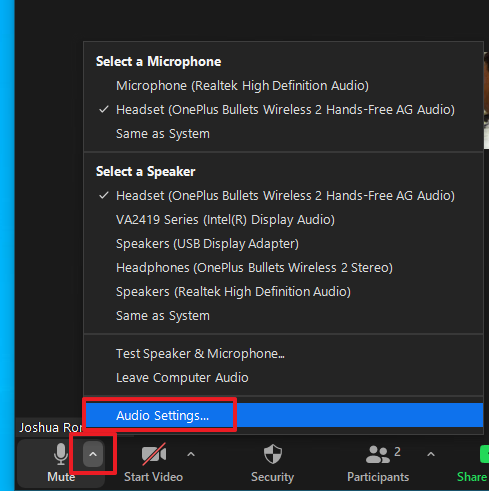
- Click on the small arrow head beside the mic icon and click Audio Settings...
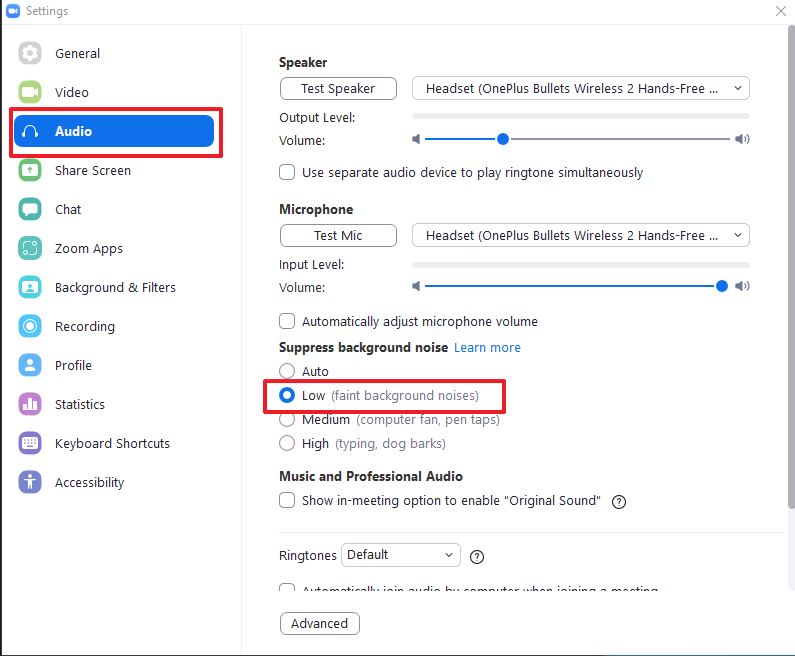
- On the Audio tab of the settings menu, look for the Suppress background noise options and select Low (faint background noises)
Teams
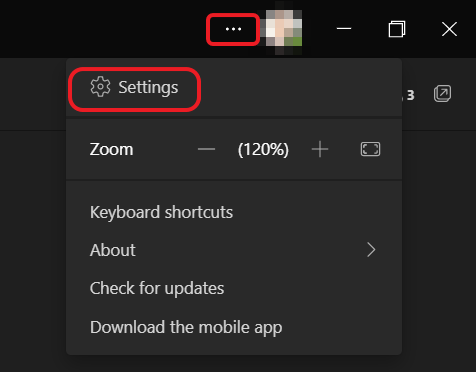
- Click on the three dots beside your picture on the upper right corner of the app window and click on Settings
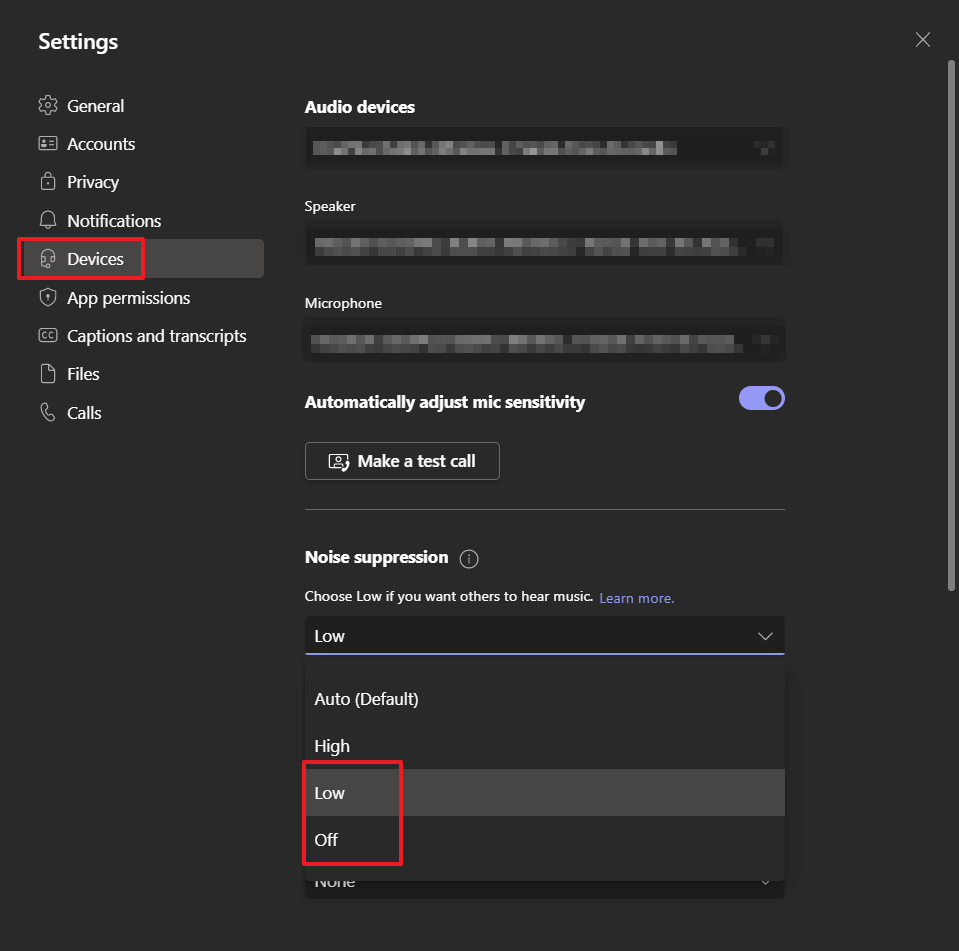
- On the Devices tab of the settings menu, look for the Noise Suppression options and select Low or Off
AWS Chime
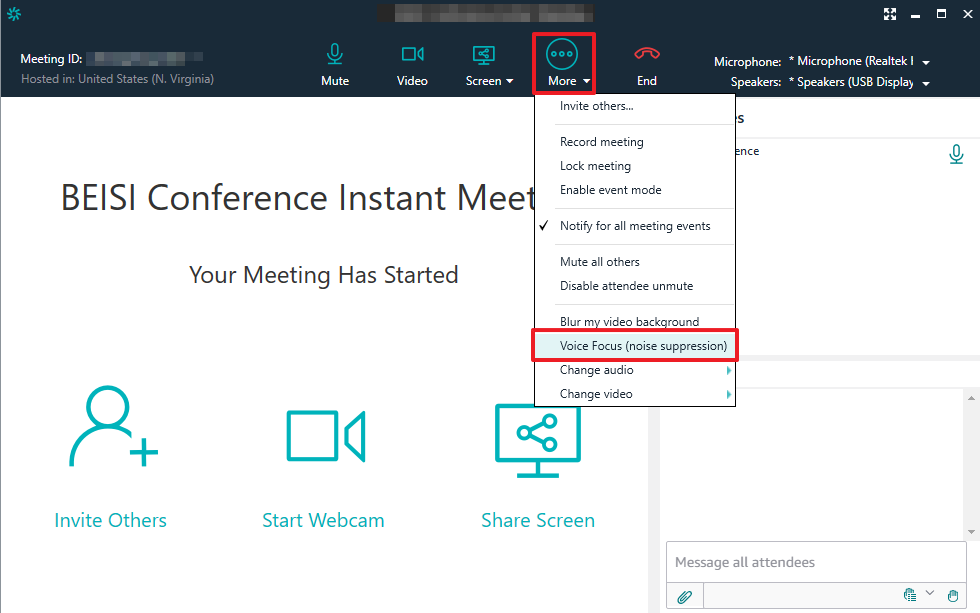
- When inside the meeting window click on More then make sure that Voice Focus (noise suppression) is unchecked. If there is a check mark beside it, click on it to disable it.
Google Meet
Step 1: Click the three dots to go to the Settings.

Step 2: Not all browsers has Noise Cancellation, if you dont have this option. please ignore.
