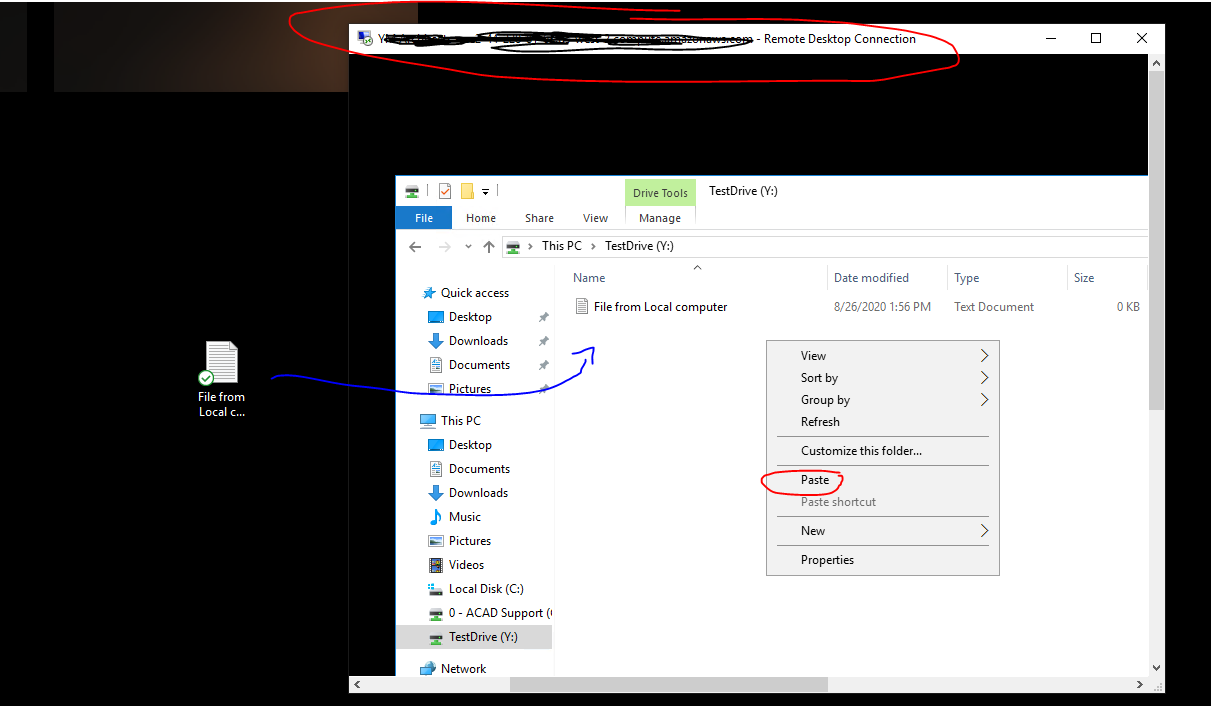
Copying from Local computer to Cloud
1. Copy the file/s you need to transfer from your local computer to your Cloud.
2. Go to your RDP file/icon, and then right-click on it and select edit. Select Local Resources Tab.
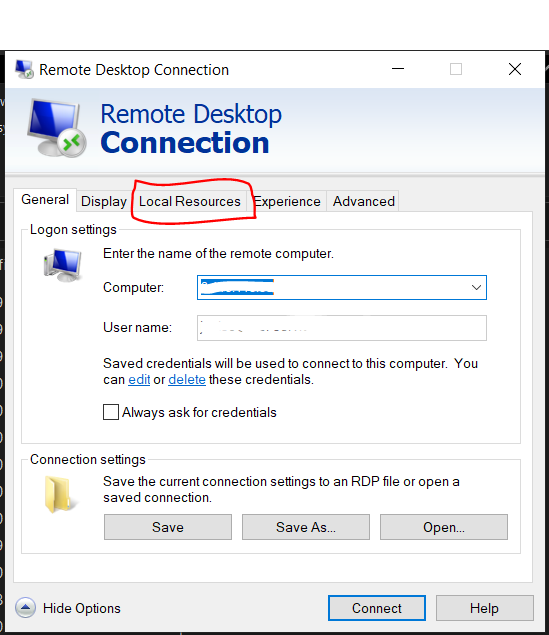
3. On Local Resources Tab, make sure that the Clipboard check box is enabled or checked. This will allow you on copying and pasting files to-and-from your cloud computer/desktop.
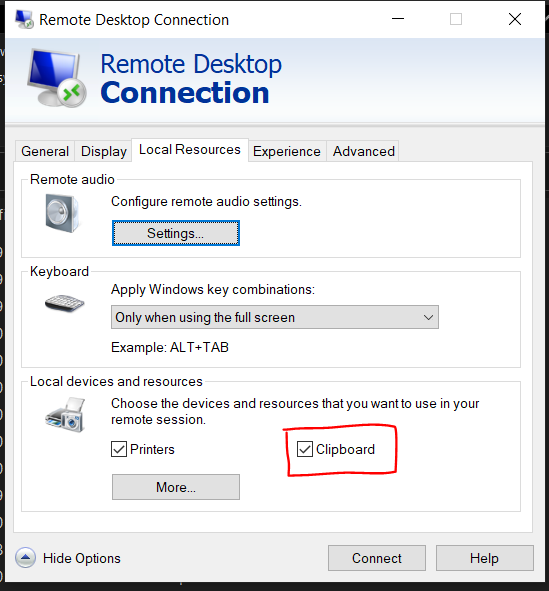
4. Save the changes you've done to your RDP file and access it.
5. Access your cloud, locate where you want to paste the copied file, and paste it.
If your copying from the cloud to your local computer, just do the usual copying & pasting.
That's how you copy/paste your file to-and-from your cloud computer.
You can minimize and drag the blue taskbar from your Remote desktop connection for easy access to your local compujter