How to Enable Audio in your Remote Desktop
1. Right Click on your RDP file and select Edit
2. Go to Local Resources Tab and click on Settings
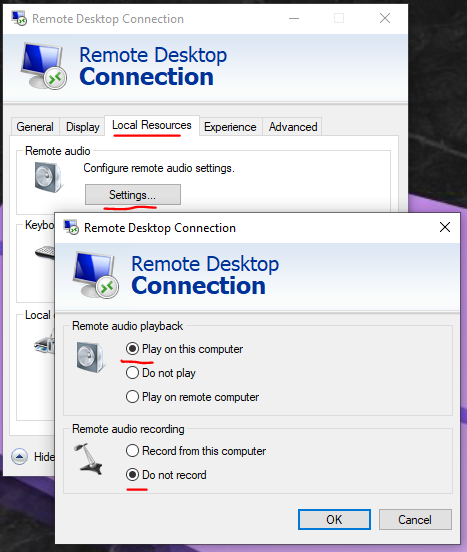
3. Go back to General tab and save your settings.
4. You might need to reconnect to the server in order for the adjustments to reflect.
5. inside your Cloud Desktop, check on the lower right corner for an speaker icon. It should be enabled and does not show any red x mark on it.

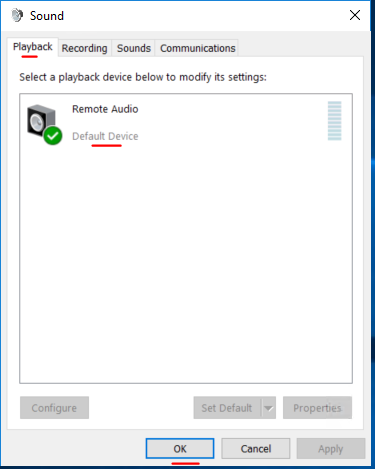
6. Right click on the speaker icon and select 'Sounds' and a pop-up box will show. There should be an Default Device ready.
7. Make a test call to make sure Microphone and Speaker works well.