Editing Remote Desktop Username (breendesign migration)
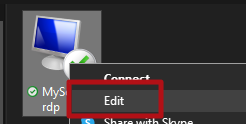
- Navigate to your rdp file/icon and right click it. From the context menu click on Edit
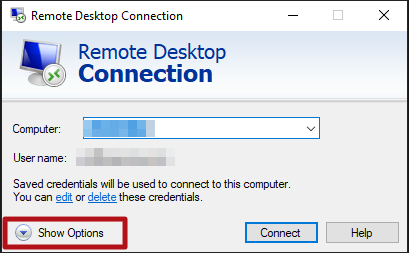
- Click on Show Options to expand the Remote Desktop Connection Window
- Click on edit below the User Name field
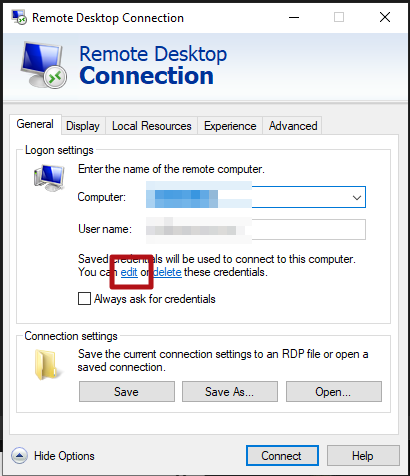
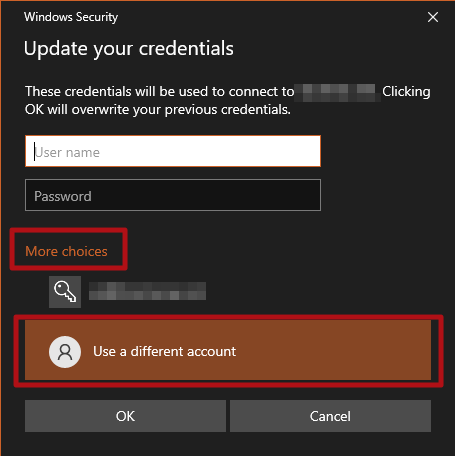
- On the window that pops up, click on More Choice then select Use a different account. Enter your username but this time ending with @breendesign.com (e.g. from guy@breeneng.com to guy@breendesign.com). Click the OK button.
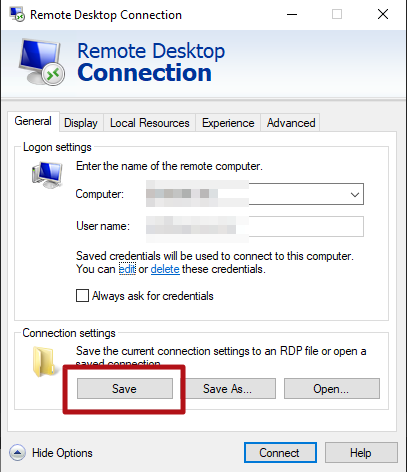
- Click on the Save button to save your changes. The next time you double click your rdp file, these settings should be automatically set.