Remote Desktop Servers Not Working After Hours
There are times where some of the remote desktop servers are shut down after hours. If you need to use a server after hours and it is not working, please use these instructions to turn it on:
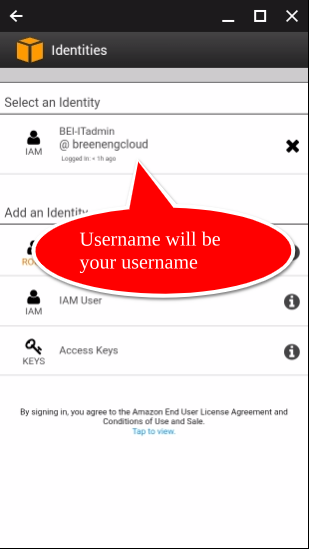
If you have previous setup the AWS console app, then when you open it on your phone, it will look like this:
-
Click on your AWS username
-
Enter your AWS password if prompted (NOTE: AWS Username and password may be different from remote desktop and email usernames and passwords).
-
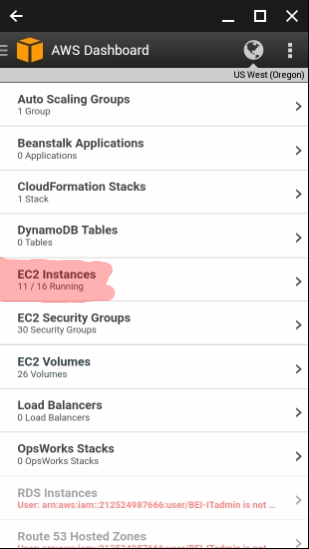
- Click on EC2 Instances
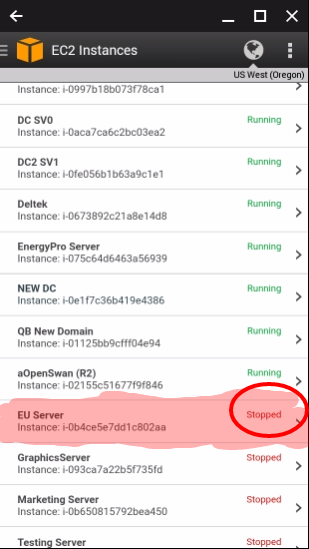
- Find your server in the list, if it says Running, please take a screenshot and send a ticket about the server not running. If it says Stopped, click on the server.
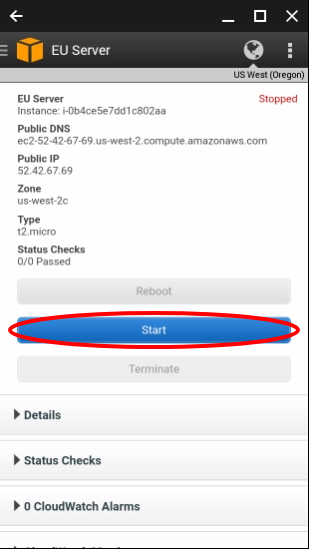
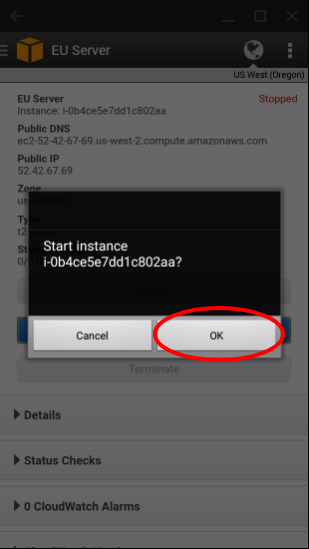
- Click the Start Button
-
Click the OK button
-
-
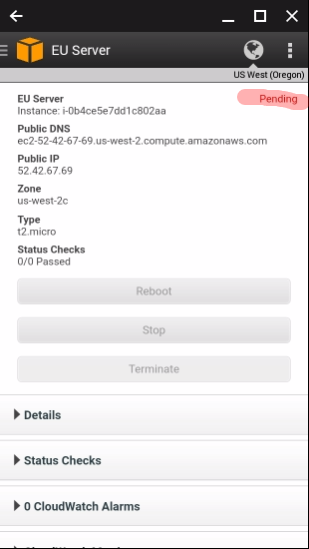
The upper right corner will say pending for up to 60 seconds, then change to running as shown below:
-
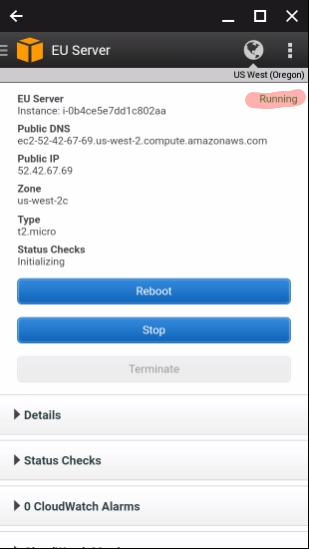
- Please wait for 2 minutes after this changes to running before logging in.
- After you are done using the server, please turn off the server by following all of the steps above, except instead of clicking Start, click Stop.
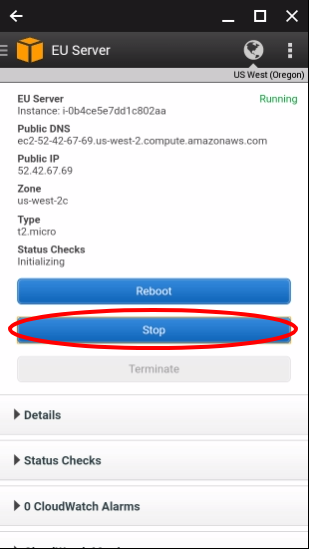
- Click Stop
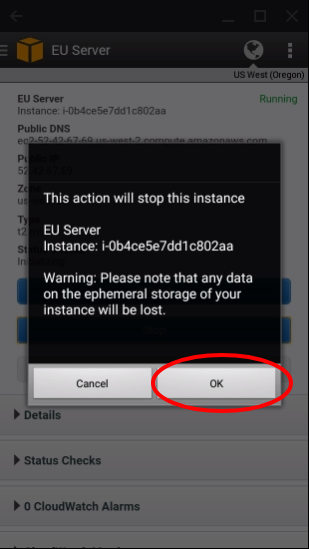
- Click OK
-
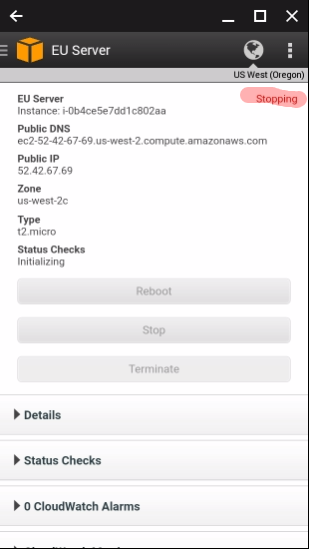
-
Running in the upper right will change to Stopping
-
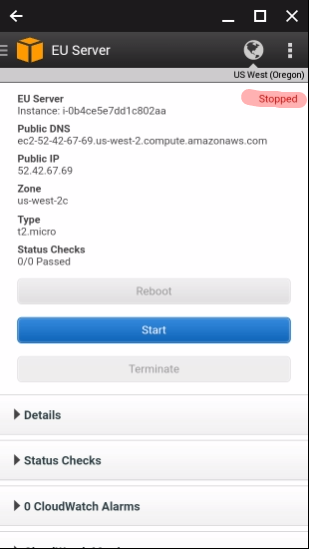
- Once the server is completely stopped, Stopping will change to Stopped. The server is now completely shut down.
_______________________________________________________________________________
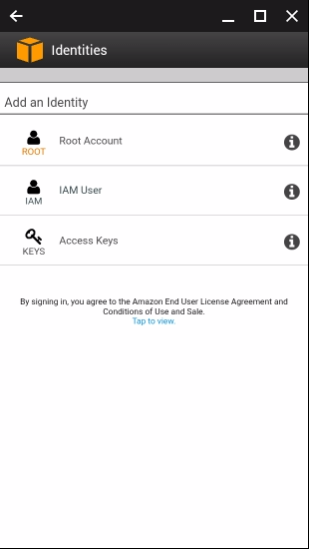
If you have not setup the AWS Console App on your phone already, then click here to download it and use the instructions below to set it up:
-
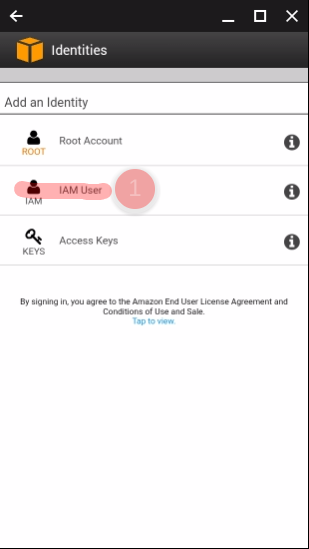
Click on IAM User:
-
-
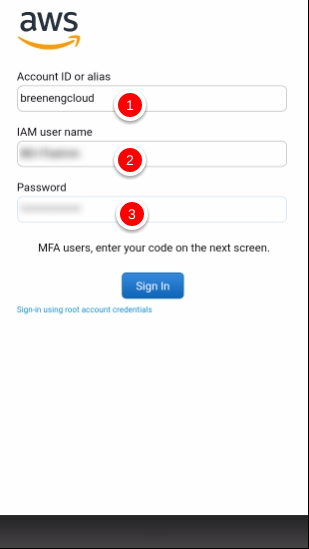
On the next screen, for Account ID or alias, enter breenengcloud and enter your AWS username and password that was provided to you (NOTE: This will most likely be different than your remote desktop or email usernames or passwords):
-
-
Click Sign In
