Set Automatic Replies when on leaves, etc.
Outlook App
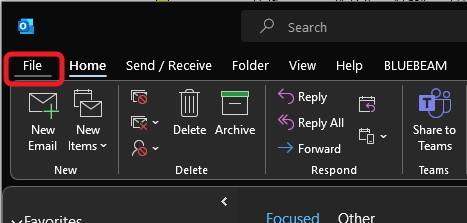
- On your outlook app go to the File tab
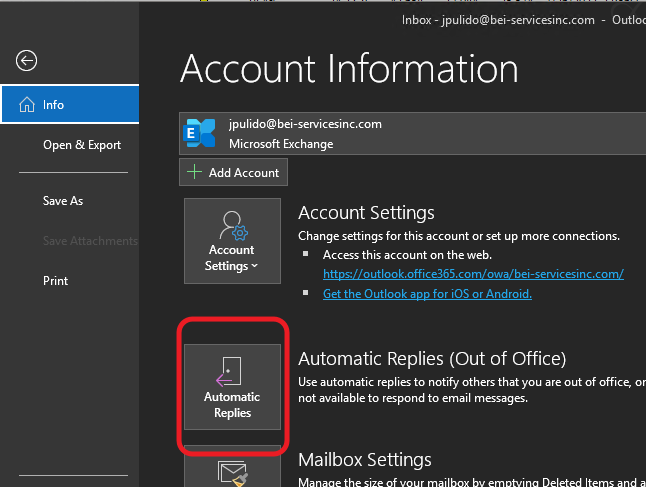
- Under Info click on Automatic Replies button
- Click on the button for Send automatic replies. You can configure the time range (date time format) or just let it be and disable it when you don't need it anymore. There are two parts to configure, one for Inside my Organization and another for Outside my Organization (manually enabled, follow the settings on the picture below). After setting your message that you want for both parts, click on OK.


Outlook (Web Browser)
1. Open outlook.office.com on your web browser.
2. On the upper left of your screen open the gear icon (settings).

3. After opening the gear icon there's a drop down list open View all Outlook settings.

4. Open Automatic replies.

5. Turn on automatic replies. You can customize the time and date that you're on your leave and you can disable it when you don't need it anymore. You can also choose between "Send replies outside of your organization" or "Send
replies only to contacts".
