PMP File Error
PMP Error
PMP Error
If you get this error, follow these instructions to fix it.

- Take note here if you can as to what the plotter is.
NOTE: This may not always be the same as PC3 file name, so you may have to check each plotter listed inidividually. -
Open a drawing
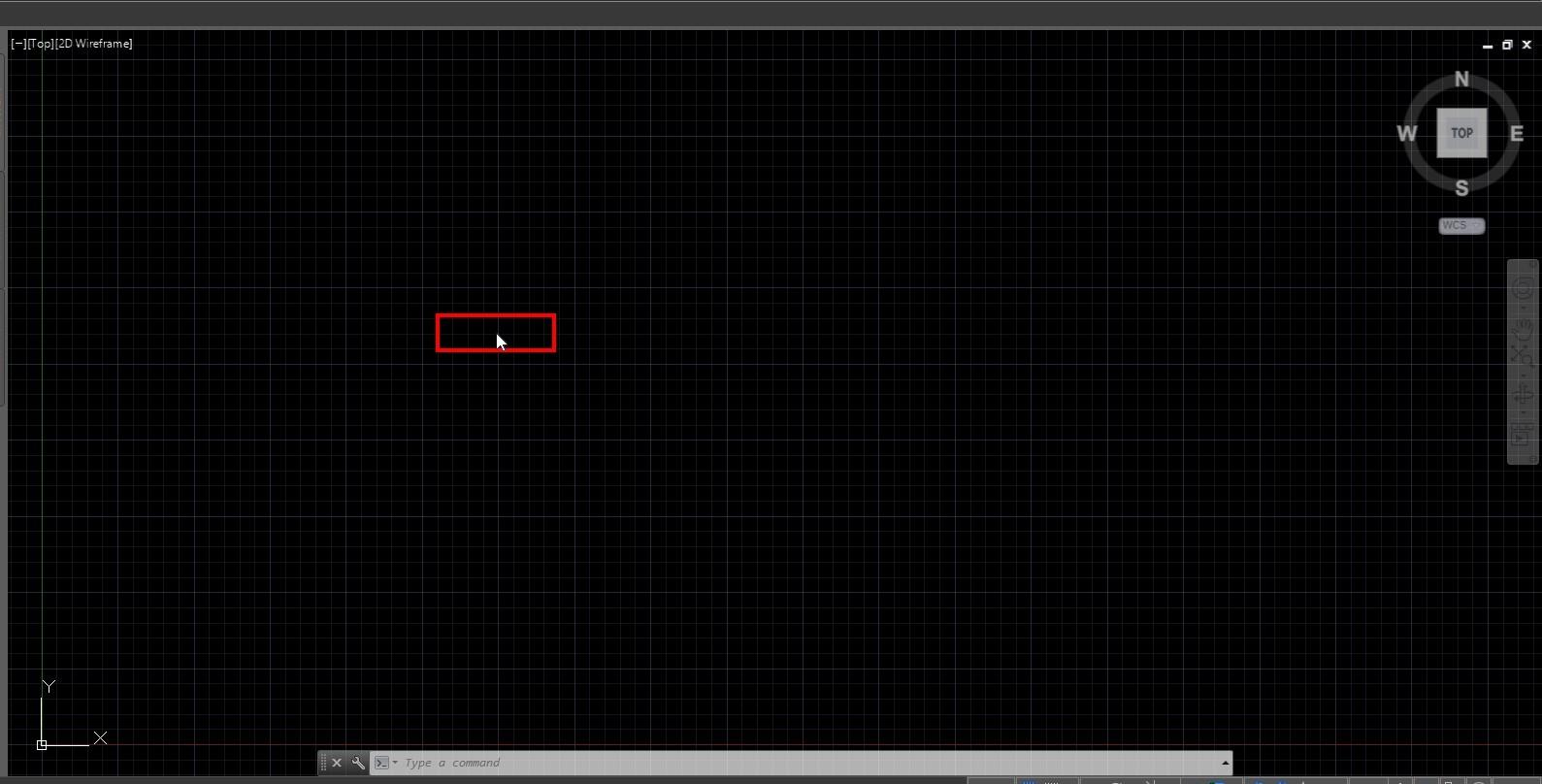
- This can be any drawing, including a blank one
-
Select the Plotter
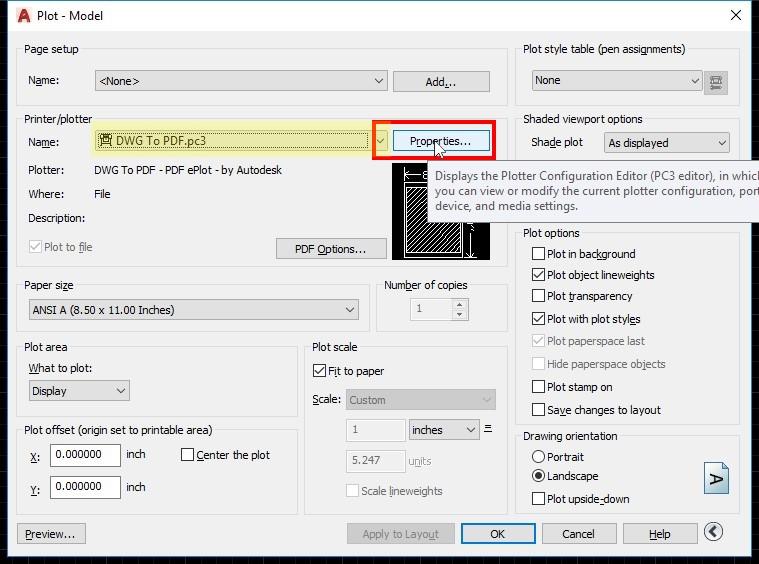
- Select the plotter noted in step one (Again, if nothing matches, you will need to go through them one at a time)
- Click on "Properties..." button in "Plot - Model"
-
Select PMP File Name <......>
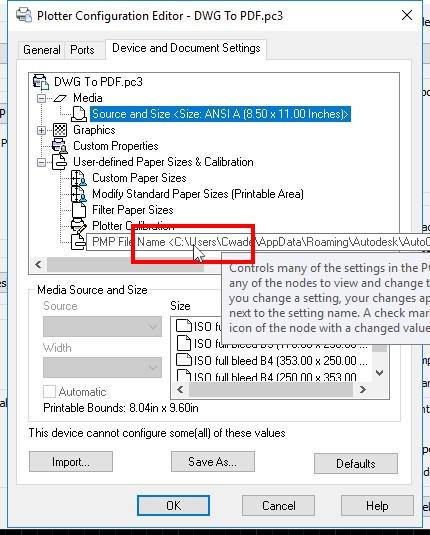
-
Click Detach
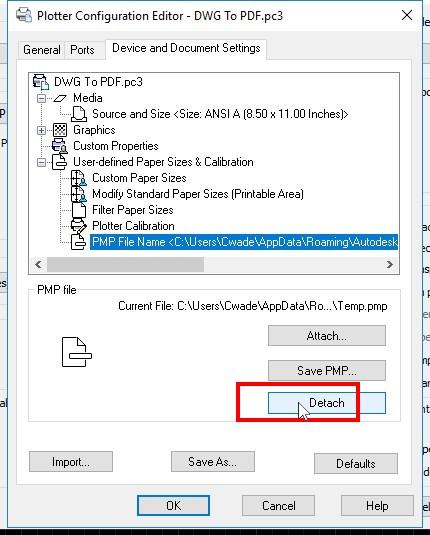
- Click on "Detach" button in "Plotter Configuration Editor"
- NOTE: If this says NONE, the Detach option will not be available.
-
Click OK
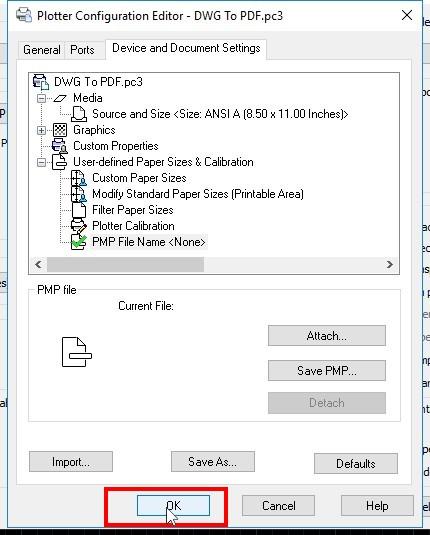
- Click on "OK" button in "Plotter Configuration Editor - DWG To PDF.pc3"
-
Click Save
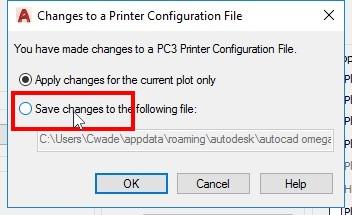
- Choose "Save changes to the following file:" option in "Changes to a Printer Configuration File"
-
Click OK
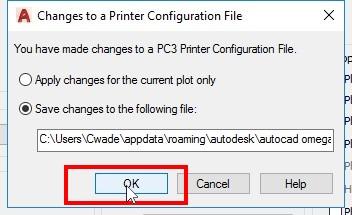
- Click on "OK" button in "Changes to a Printer Configuration File"
-
Finish Plot
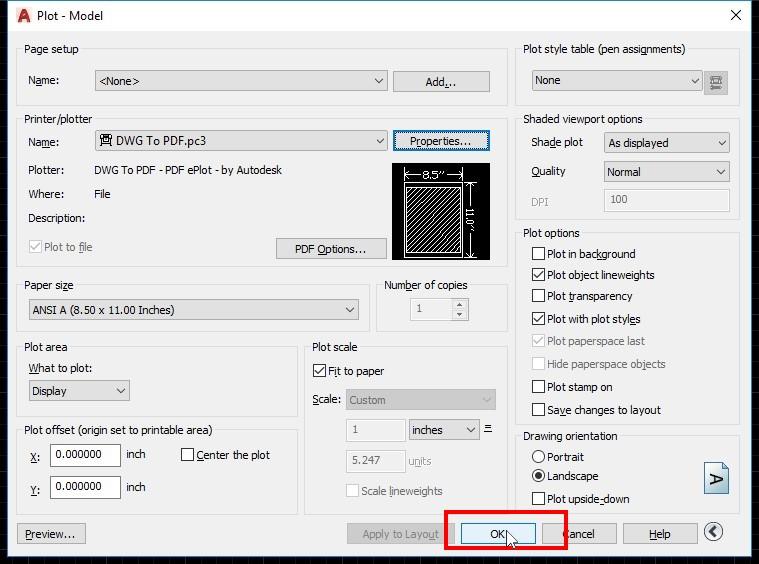
- Click on "OK" button in "Plot - Model"
- NOTE: This step is important for this to take effect, even if you are going to delete the file that is going to be created.
-
Save the file or finish the plot
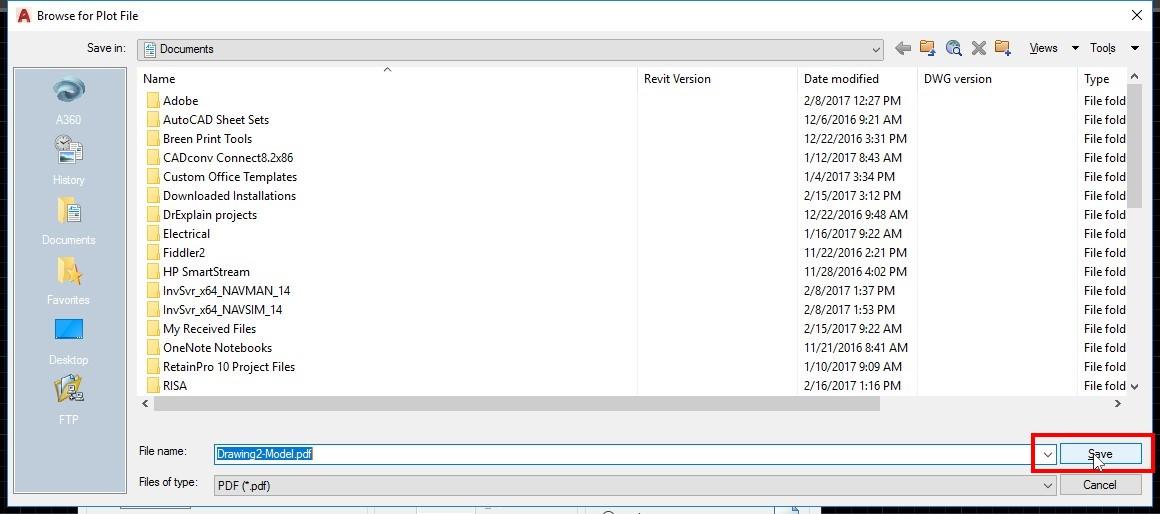
- Click on "Save" button in "Browse for Plot File"
-
Double check the settings took effect
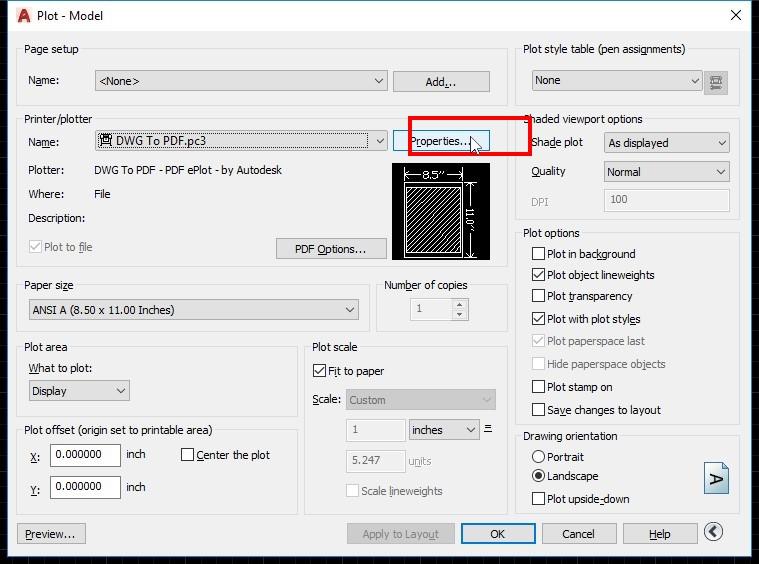
- Use plot again
- Click on "Properties..." button in "Plot - Model"
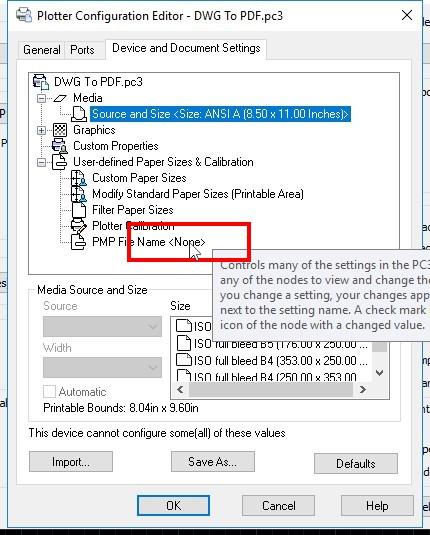
- Click on "PMP File Name " tree item in ""
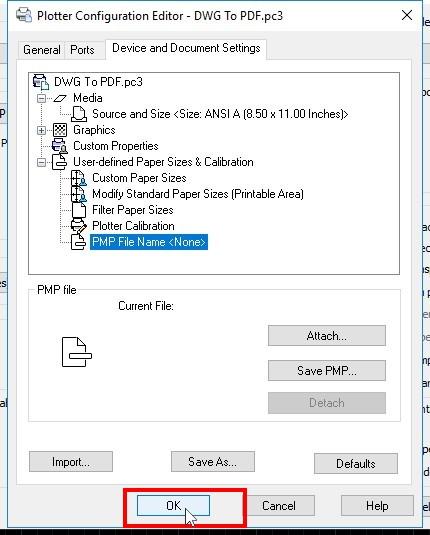 Click on "OK" button in "Plotter Configuration Editor - DWG To PDF.pc3"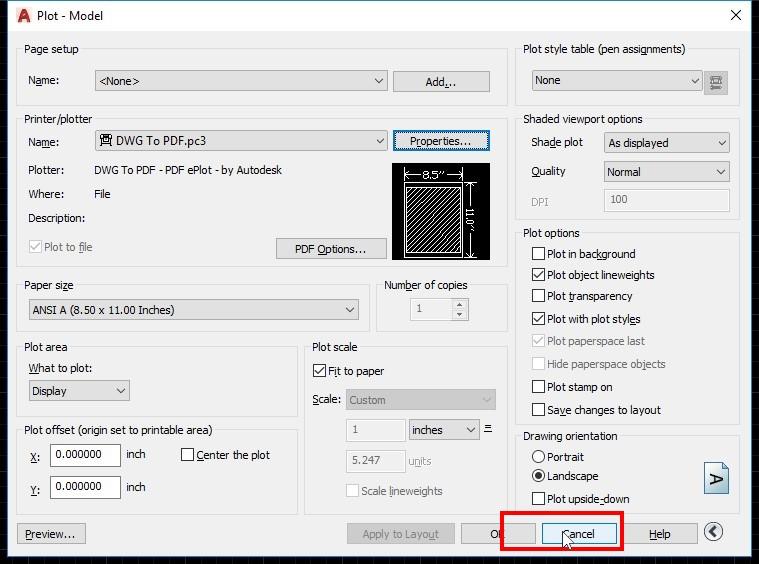
- Click on "Cancel" button in "Plot - Model"
 Click on "OK" button in "Plotter Configuration Editor - DWG To PDF.pc3"