Windows user logoff
To create a panel for a dashboard on sumologic for Windows logon via RDP, follow the steps listed below
- On sumologic, click on + New button and click Log Search

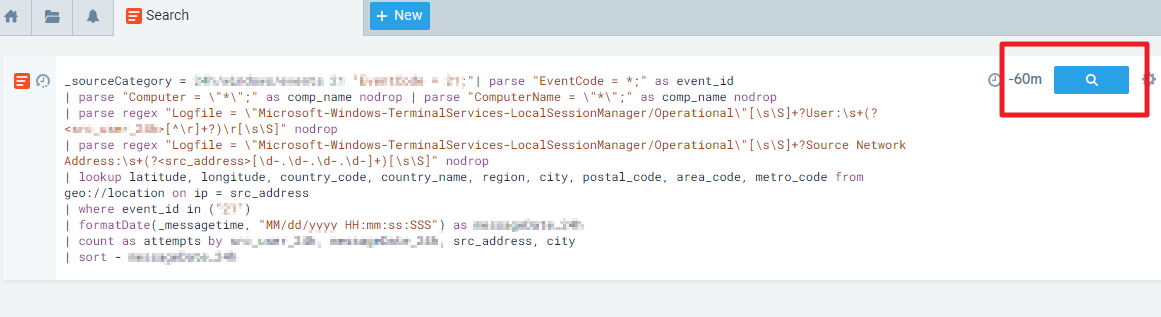
- Type in the following into the query box. Highlighted below is what you need to change for each server you want this to be applied to.
_sourceCategory = 24h/windows/events 23 "EventCode = 23;"| parse "EventCode = *;" as event_id| parse "Computer = \"*\";" as comp_name nodrop | parse "ComputerName = \"*\";" as comp_name nodrop
| parse regex "Logfile = \"Microsoft-Windows-TerminalServices-LocalSessionManager/Operational\"[\s\S]+?User:\s+(?[^\r]+?)\r[\s\S]" nodrop
| where event_id in ("23")
| formatDate(_messagetime, "MM/dd/yyyy HH:mm:ss:SSS") as messageDate
| count as attempts by src_user, messageDate, comp_name
| sort - messageDate
- Set a time period for the search and run a search (pic for reference to buttons only)
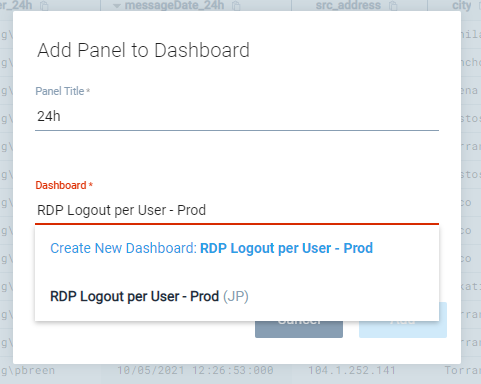
- Once search is complete you can now add it to a panel on a dashboard by clicking Add to dashboard button, add in a Panel Title and either create a new dashboard or add it to a an existing one thru the dropdown