Back-Up Email of former Employee
1 . Go to Admin Center to restore deleted user’s account.
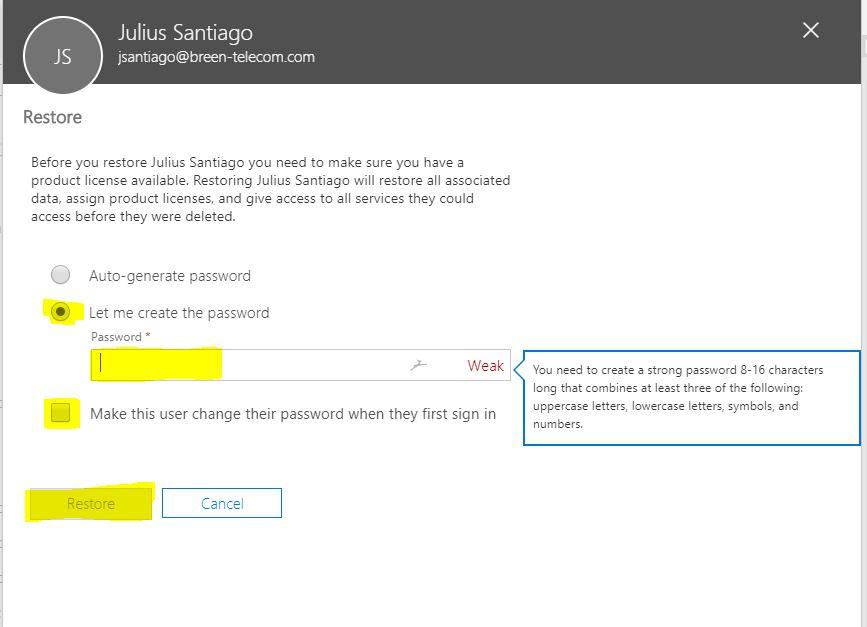
Admin Center > Users > Deleted users. Under deleted users, choose the user you want to restore. Click the name of the user, and then click Restore.
2. To restore, unclick the Make this user change their password when they first sign in, then click the let me create password to have a new password of your own choice then click Restore.
3. After restoring, unlick the Send password in email then click Close. (go to Active users and check if you have successfully restored the user.)
4. Open your outlook desktop in 24h server.
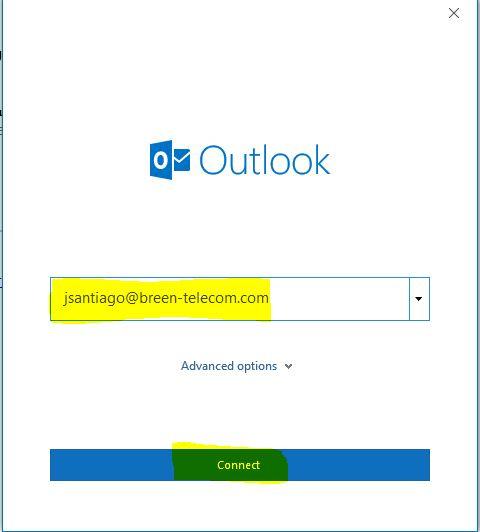
5. To add the user’s email in your outlook app, go to File > + Add Account. Input the user’s email credential and then click Connect.
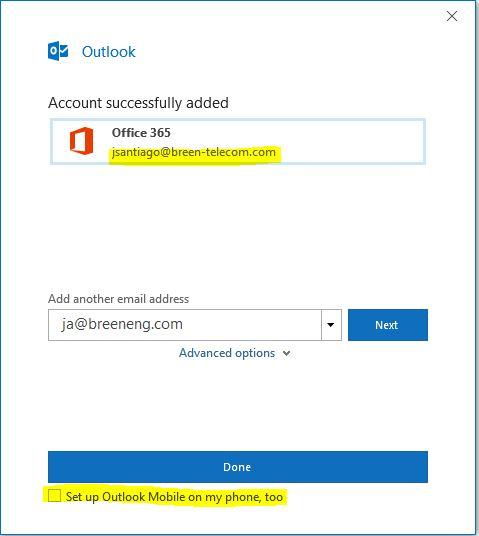
6. Check if the user’s email was successfully added. Remember to unclick the Set-up Outlook Mobile on my phone, too and then click Done.
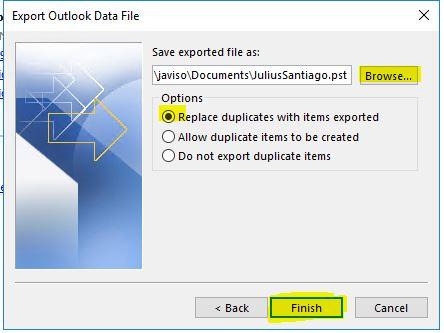
7. You will see that outlook is retrieving the user’s files/email. After the successful retrieving, export the user’s email. Again, go to File > Open & Export > Import/Export > Choose Export to a file > Outlook Date File (.pst) > Choose the recently restored user > Browse on where you want to save the exported user’s files. (Save it with the user’s name. e.g JuliusSantiago) > Select Replace duplicates with items exported (choose this when it’s the 1st time you export the user’s file) / Do not export duplicate items (when you want to continue the exporting process, if interrupted) > Finish. It will at least take 15-25mins to successfully export emails.
8. After successfully exporting the emails, do no forget to delete the user again. Go to Admin Center > Active Users (choose the user you recently restored) > Delete User.
And that's how you back-up former employee's email contents.