RISA Software Update/Installation
If we are updating RISA software's it is best practices according to RISA support to completely uninstall the software before installing the latest updates.
Always test the software if it works especially for structural users.
If there is a new version, let say Version 17 to version 18 (It does not apply on update for 17.2 or 17.4 .. etc)
you may need to delete Regedit on current user folder to avoid confusion.
See further instructions below:
1. Uninstall RISA programs via Windows Control Panel.
2. Manually Delete the following folders:
- C:\RISA
- C:\Program Files\RISA
- C:\ProgramData\RISA
3. Rename your C:\Users\%username%\Documents\RISA to C:\Users\%username%\Documents\RISA_OLD
- This way any custom shapes or defaults that you previously set will still be accessible from this folder. You will just need to move the appropriate files over into the new RISA folder.
4. In the Registry Editor, delete RISA Technologies in both Current_User and Local_Machine reg settings:
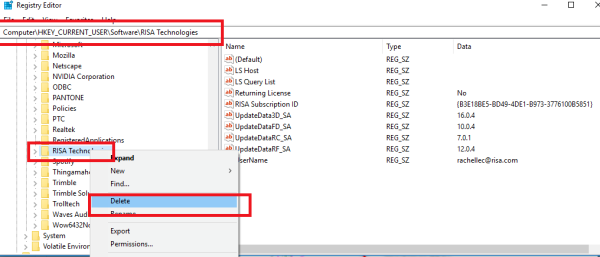
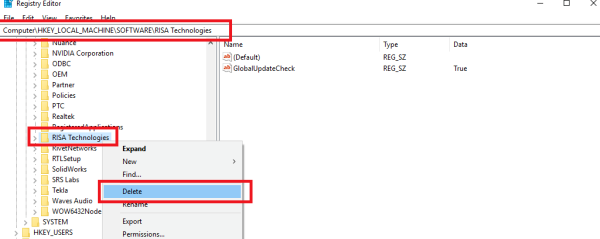
5. Reboot to purge any temp files and make reg settings permanent.
6. Reinstall any RISA programs to C:\RISA using this link:
https://risa.com/d_updates.html
7.) As an Admin, Make sure to delete
8.) After installed you may need to login each RISA Users with their designated account by opening any RISA Software, you can see their account to our RISA on onenote. (Search RISA on onenote)
Installation for new server
1.) Use Custom location, Do not use location such as x86 and program files
