New Teams Powershell Fix
Due to the way New Teams is being deployed, only powershell commands are used to fix the deployment. Here is what is commonly used to troubleshoot. For issues such as missing icon in the taskbar or minor annoyances, it is recommended to work on this after hours or when there is no one else in the server because the system kernel has a tendency to lock an appdata folder which can lead to being unable to re-install teams without rebooting the server.
Use as written
Change as needed
- On the server of the user you are trying to troubleshoot, login as yourself(administrator) and launch an elevated powershell session. Use command Get-AppxPackage -AllUsers -name MSTeams and take note of the "PackageFullName" and the "InstallLocation".
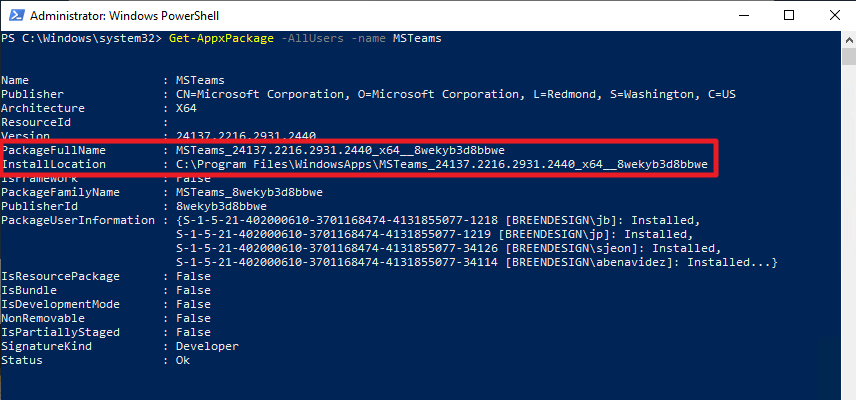
*note: sometimes there may be more than one version, take note of the version with the higher number. because of the way it is being deployed we don't have control over this unless everyone updates to the latest version.
- Logon or do a remote session control to the user account you are trying to fix. Open a powershell session and then run command Get-AppxPackage -name MSTeams . This should show what version is installed for the user and take note of the "PackageFullName" for the specific user. There are 3 scenarios that have been encountered before which are:
- If the "PackageFullName" and the "InstallLocation" do not match, upgrade the installed version. Close teams on the user account then on the powershell on their session run command Remove-AppxPackage -Package 'PackageFullname' (note the apostrophe is needed) where the Packagefullname is the one you got from the user session in step 2. Once it has been removed, re-add the updated package by using command Add-AppxPackage -Path 'InstallLocation\Appxmanifest.xml' -Register -DisableDevelopmentMode where InstallLocation is noted from the admin session in step 1.
- If the "PackageFullName" and the "InstallLocation" match, re-registering the app usually fixes issues. Close teams on the user account then on the powershell on their session run command Remove-AppxPackage -Package 'PackageFullname' (note the apostrophe is needed) where the Packagefullname is any of the two since they should be the same. Once it has been removed, re-add the package by using command Add-AppxPackage -Path 'InstallLocation\Appxmanifest.xml' -Register -DisableDevelopmentMode where InstallLocation is any of the two since they should be the same.
- If the command returns nothing on the user session, just add/install the package to their account by using command Add-AppxPackage -Path 'InstallLocation\Appxmanifest.xml' -Register -DisableDevelopmentMode where InstallLocation is noted from the admin session in step 1.
Sample commands:Remove-AppxPackage -Package 'MSTeams_24137.2216.2931.2440_x64__8wekyb3d8bbwe'
Add-AppxPackage -Path 'C:\Program Files\WindowsApps\MSTeams_24137.2216.2931.2440_x64__8wekyb3d8bbwe\Appxmanifest.xml' -Register -DisableDevelopmentMode
