Creating a Labor Detail Report
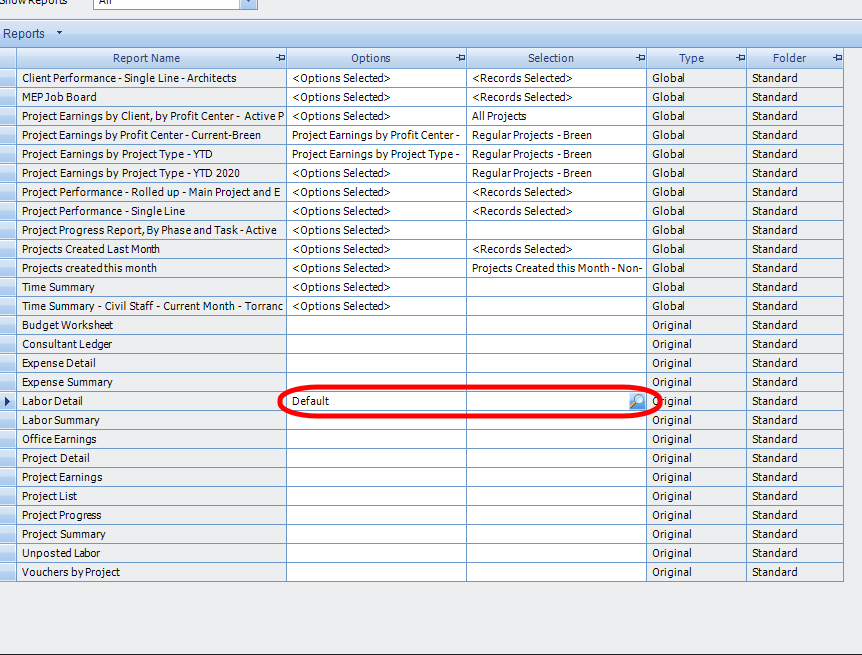
- Go to Labor Detail row and under selection click on the search icon.
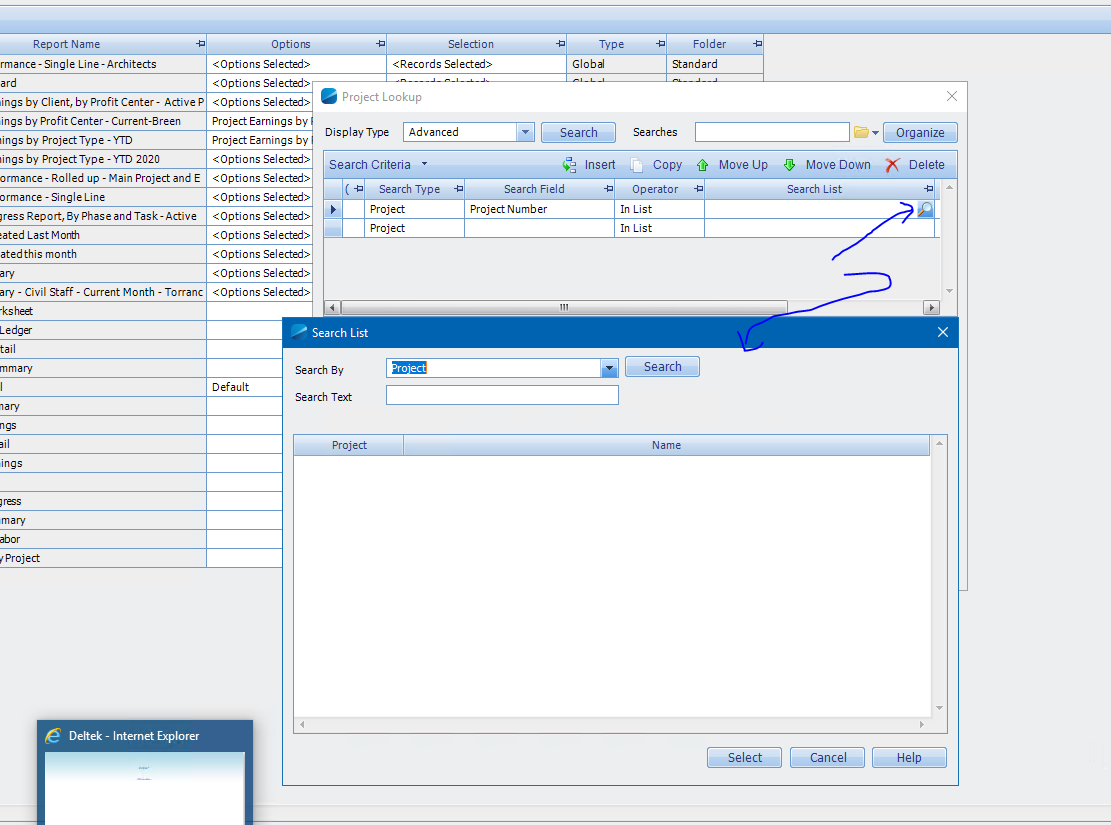
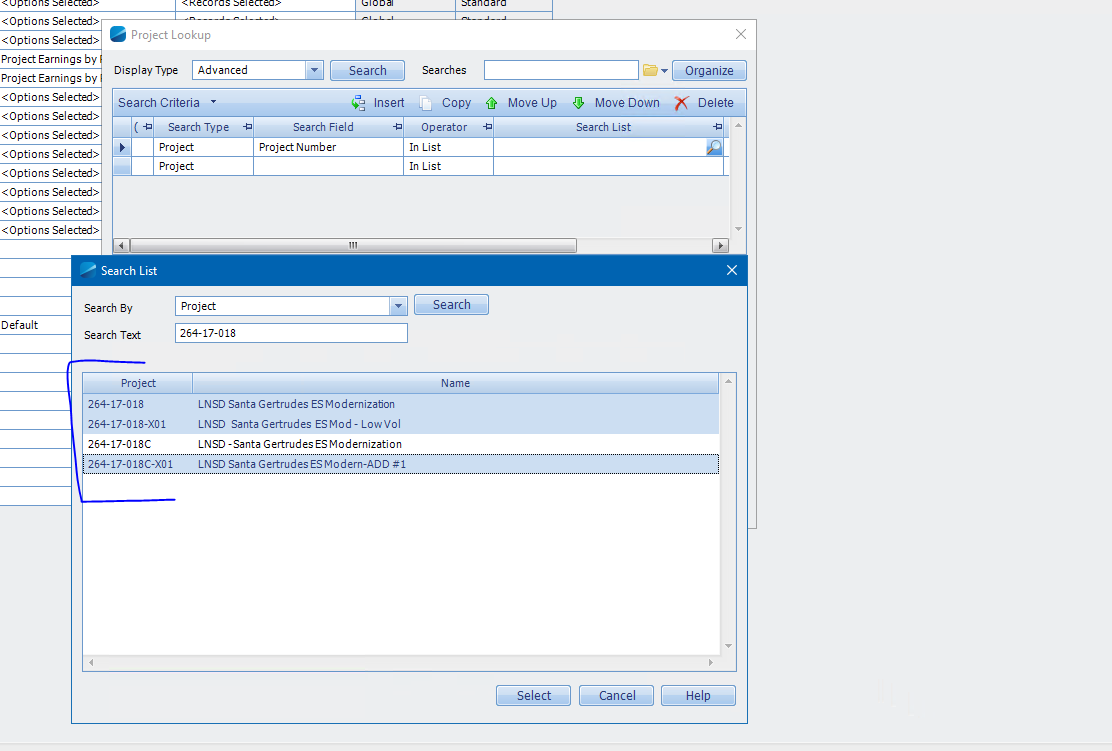
- In the Project Lookup window, under search list click on the search icon again and a Search List window should open. Under Search Text, type in the project number you are looking for. From the list, you can select multiple entries then click Select. If you want to add other project numbers to the search you can click on the search icon again on the Project Lookup window. After finishing your selection, click on Apply button on the Project Lookup window.
Example shown below:
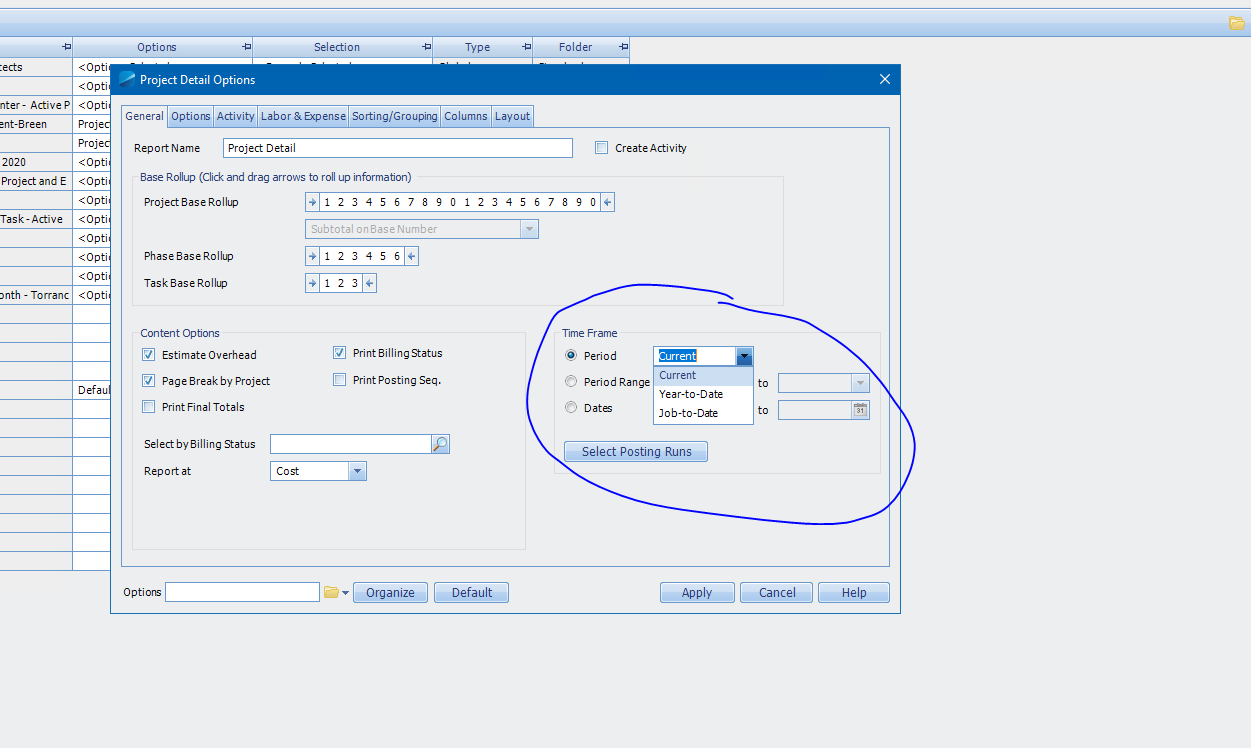
- Go back to Labor Detail row and under options, click the triple dot button to open Project Detail Options window which lets you filter the data you want to look up. Click Apply after filling this out.
- Under Sorting/Grouping select which labels/headers you need for your report.
- Under Sorting/Grouping select which labels/headers you need for your report.
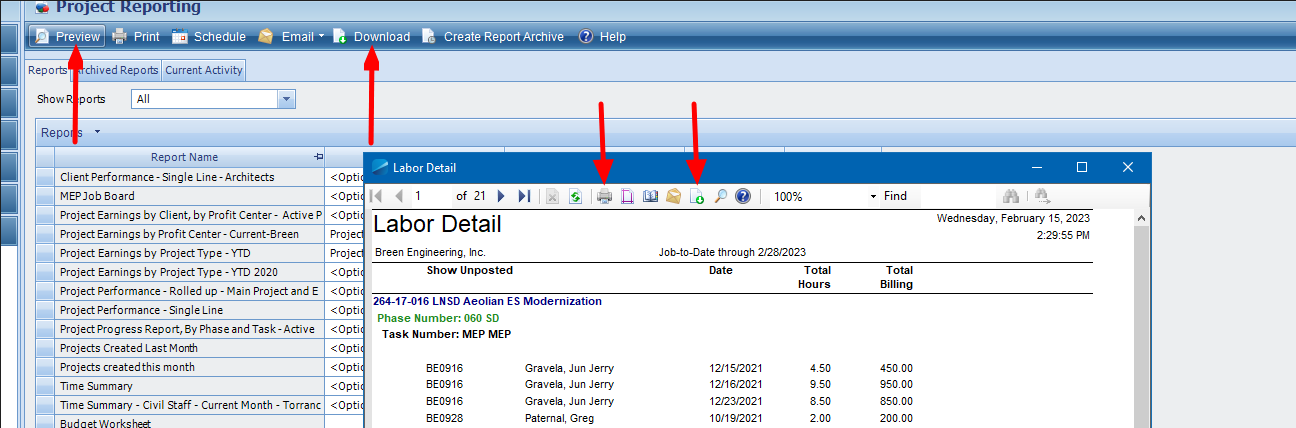
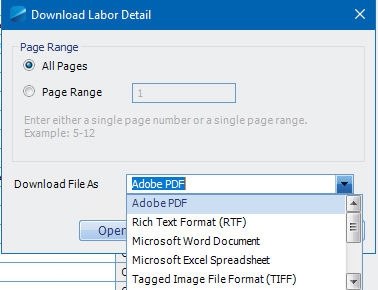
- You may now click Preview button to show transactions within the parameters you’ve set on the Options and you can print/export this report directly to a copier or save it as a pdf, word, or excel file.