Roaming Profiles
Setting up Roaming Profiles in our current environment.
1. Create a folder where the Profiles are going to be stored
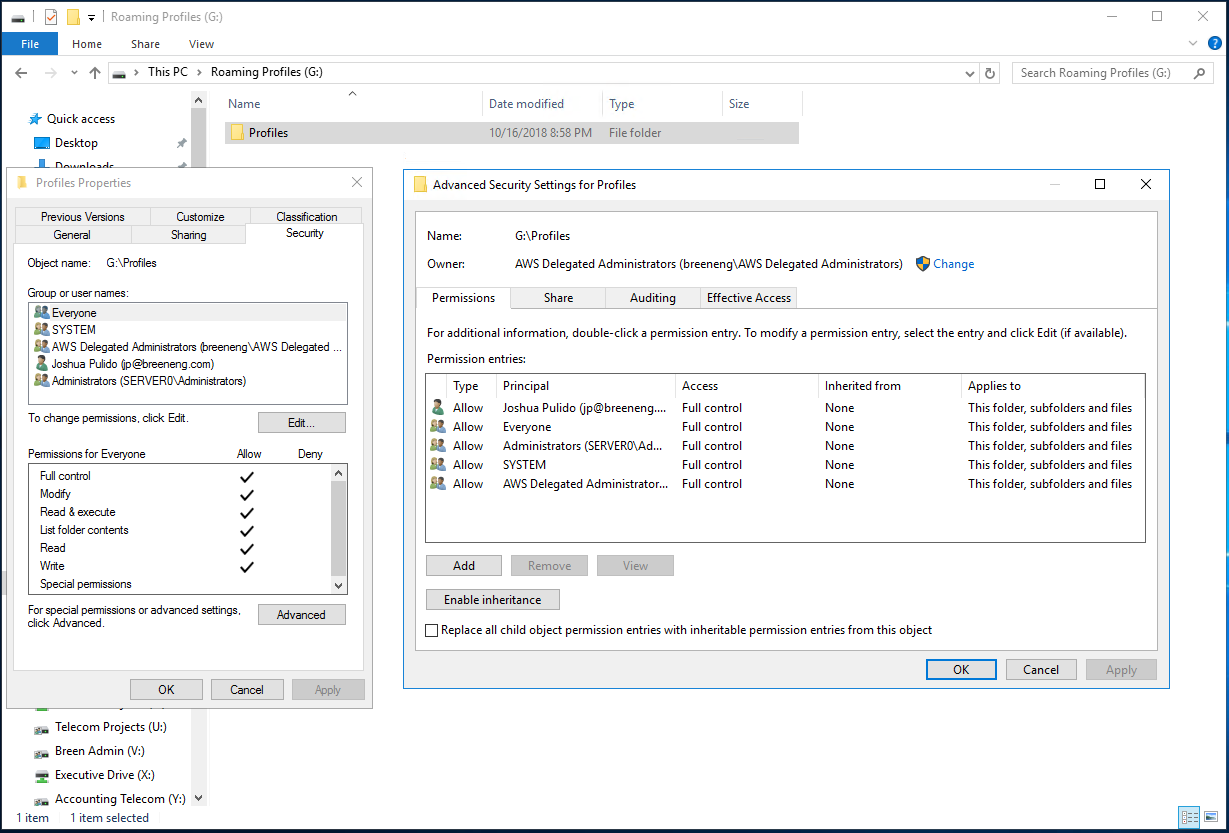
- Folder should be owned by "AWS Delegated Administrators"
- Give "Everyone" full control
- Disable Inheritance (if asked, choose to Convert Inherited permissions into explicit permissions, then add and remove permissions as necessary)
- Share this folder
2. Setting the profile path of a user
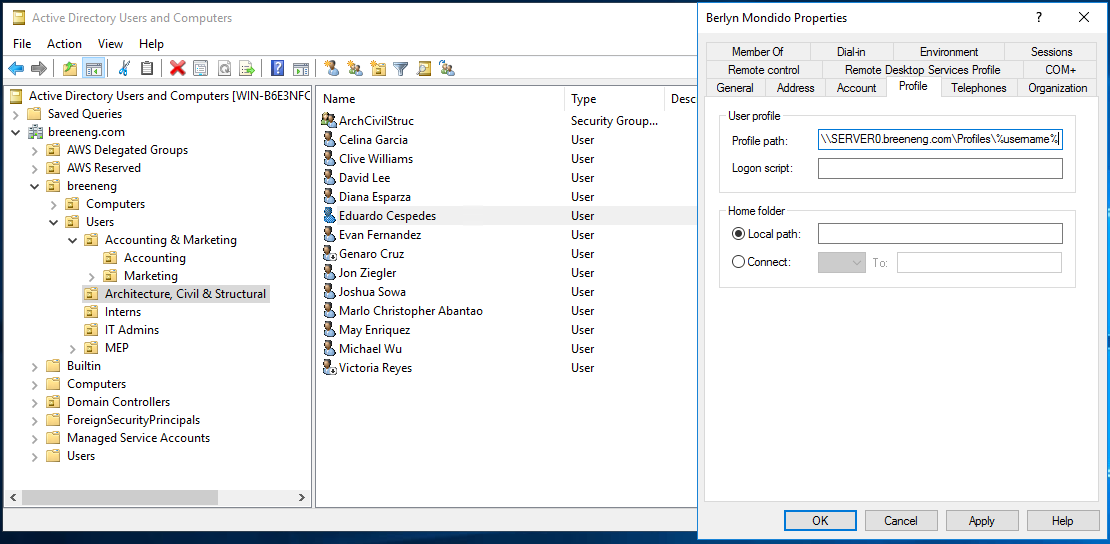
- Go to Users and Computers
- Go to the properties of the user you wish to setup and in his/her profile tab, under profile path, type in the share path of the folder for the profiles along with %username% e.g. "\\SERVER0.breeneng.com\Profiles\%username%"
3. Configuring a users profile folder for access. This step is very sensitive so please follow as stated.
- Login the user for a profile folder to be created and then sign out. This might take awhile if the user is not new as files are being synced to its new profile path
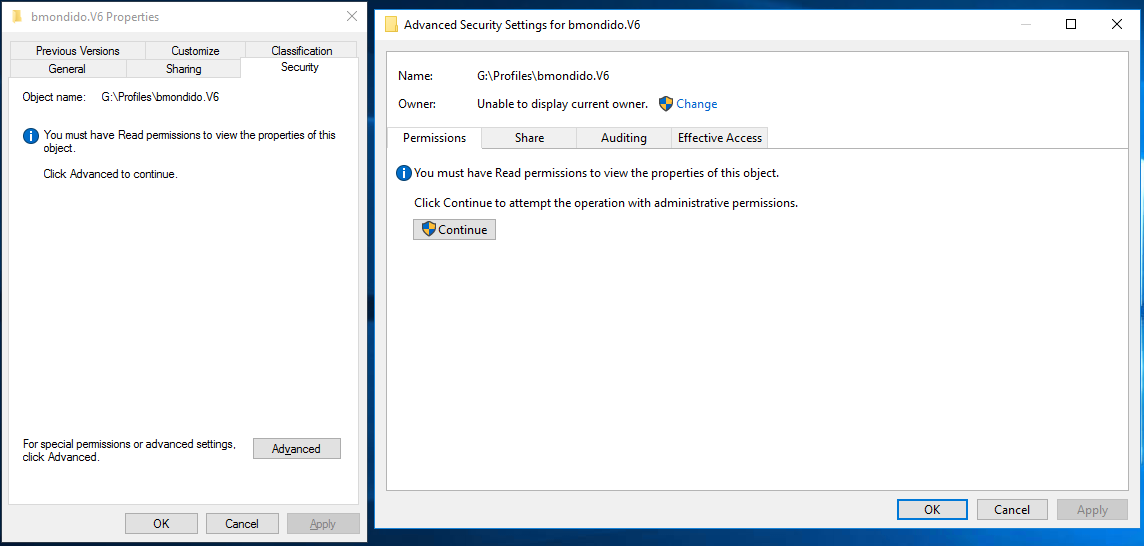
- Navigate back to the folder created before and you should see the users personal profile folder. Go to the properties of the users profile folder
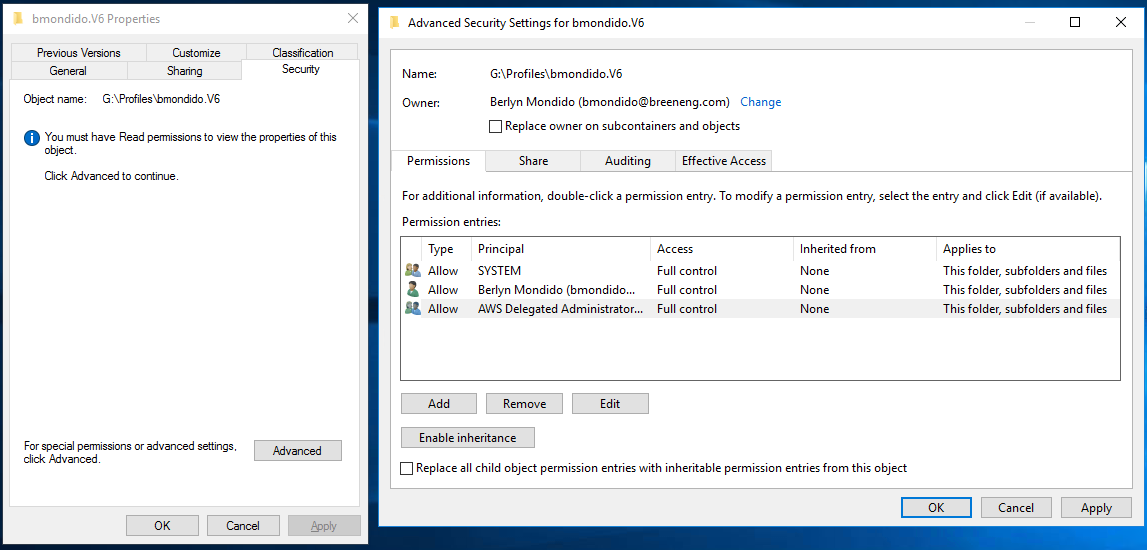
- Go to the advanced security properties. Temporarily change the owner to "AWS Delegated administrators", checking the "Replace owner on subcontainers and objects" checkbox. Click ok or continue to any prompt
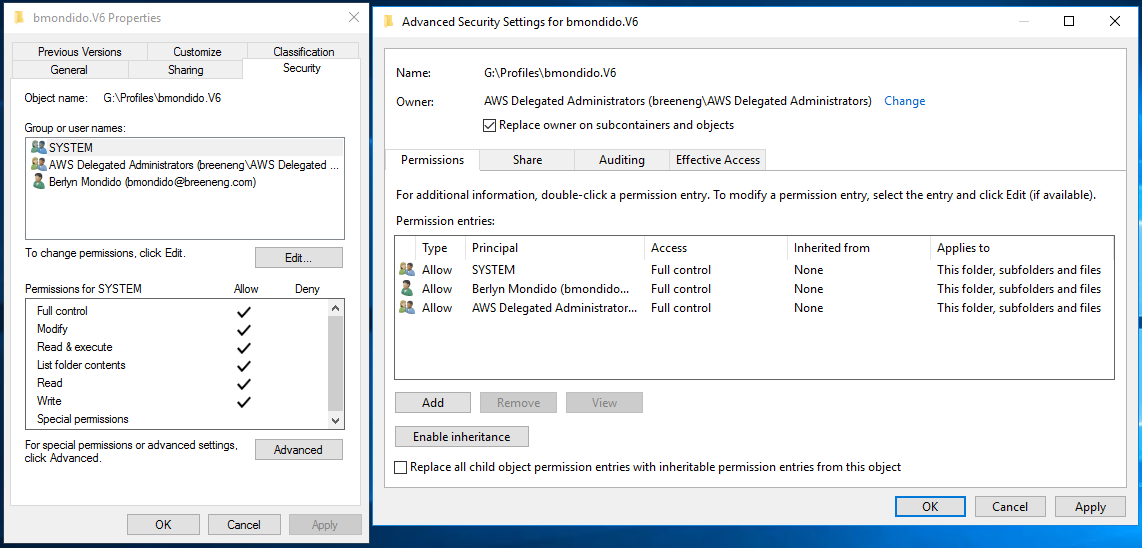
- Re-open the advance security properties box then add "AWS Delegated Administrators" and the user to the permission entries granting them full control. Click apply then OK or continue to any prompt that shows
- Change the owner back to the user checking the "Replace owner on subcontainers and objects" checkbox. Click ok or continue to any prompt
4. Test to check if profile loads correctly
- Login the user again. If there is no notification saying that the you are signed in to a temporary profile then you should be good to go