Opening Amazon Chime meeting in a browser
In order to use a webcam with Amazon Chime, you must either have it's app installed or join in via a web browser on your LOCAL COMPUTER as a webcam will not go through to the cloud.
Follow these steps to join a meeting through a web browser, preferably Mozilla Firefox or Google Chrome.
- From the invite, find the link to the meeting, copy and paste it on to a new web browser tab.
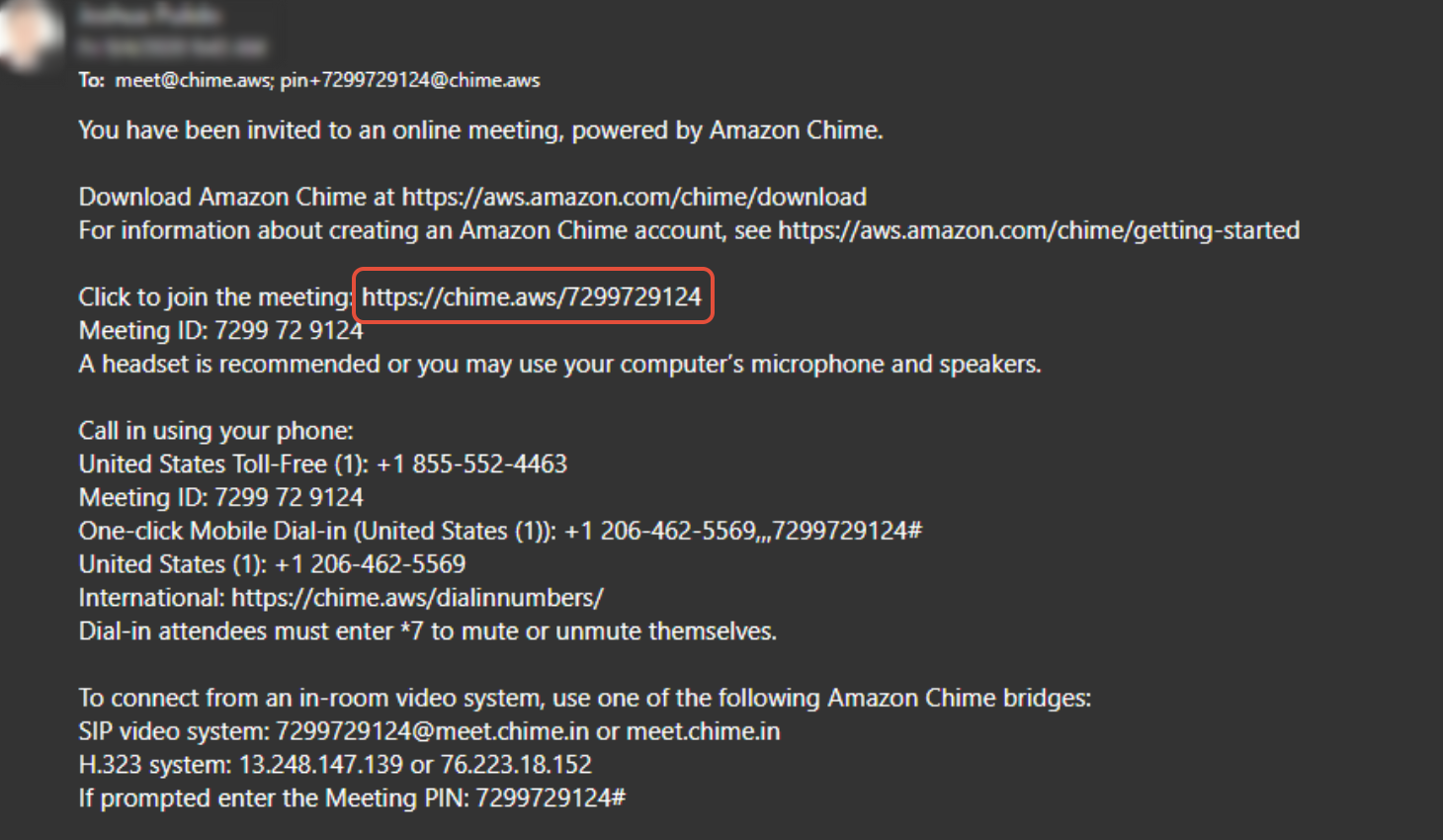
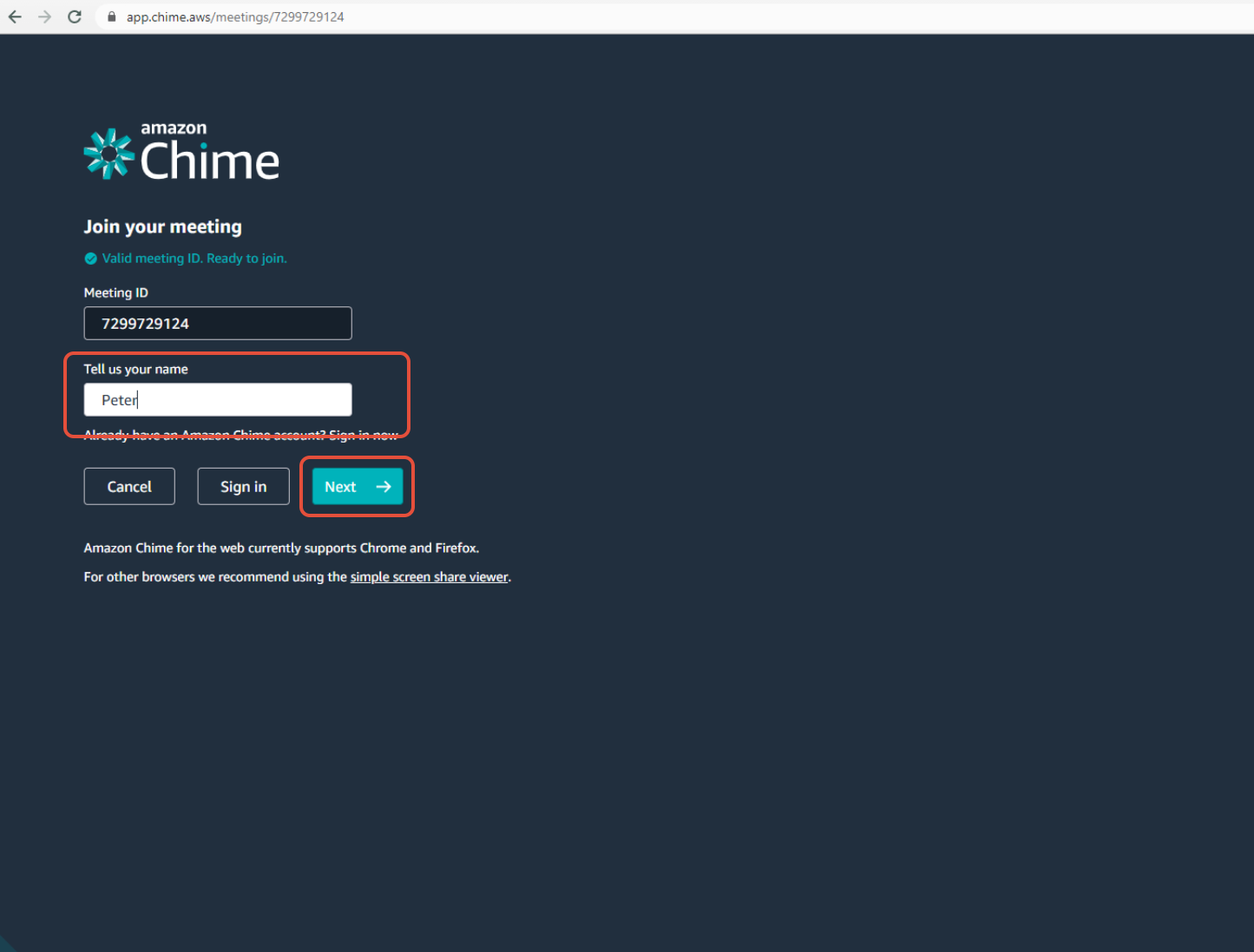
- On the page that opens, either type in the display name that you would like to use (usually just your name) and then click Next or if you have a chime account you may sign in as well.
- From this point on, the prompts may vary on when they show up but for most, they show up like this. To enable audio using your headset/mic & headphones, click Allow on the prompt that pops up near the upper left corner of your browser window.
Google Chrome: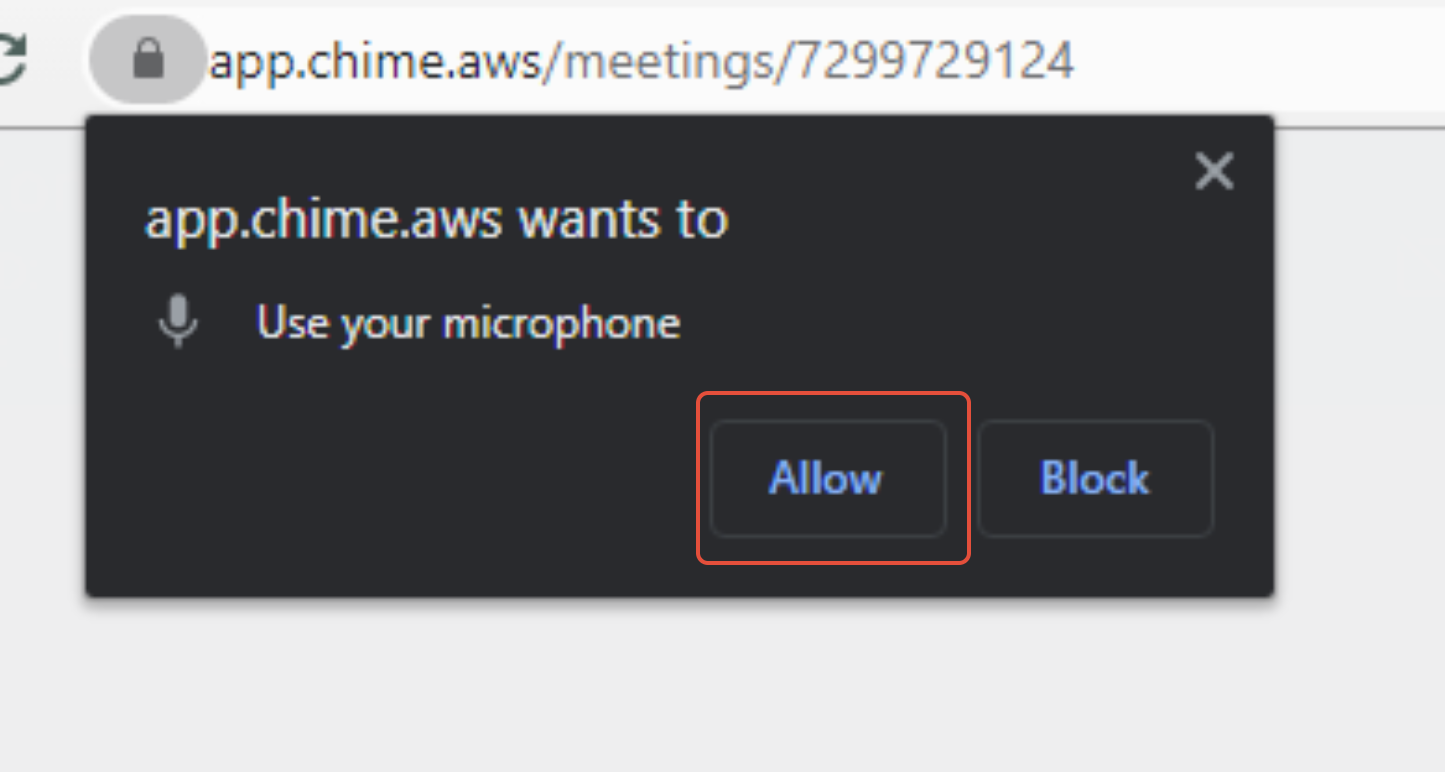 Mozilla Firefox: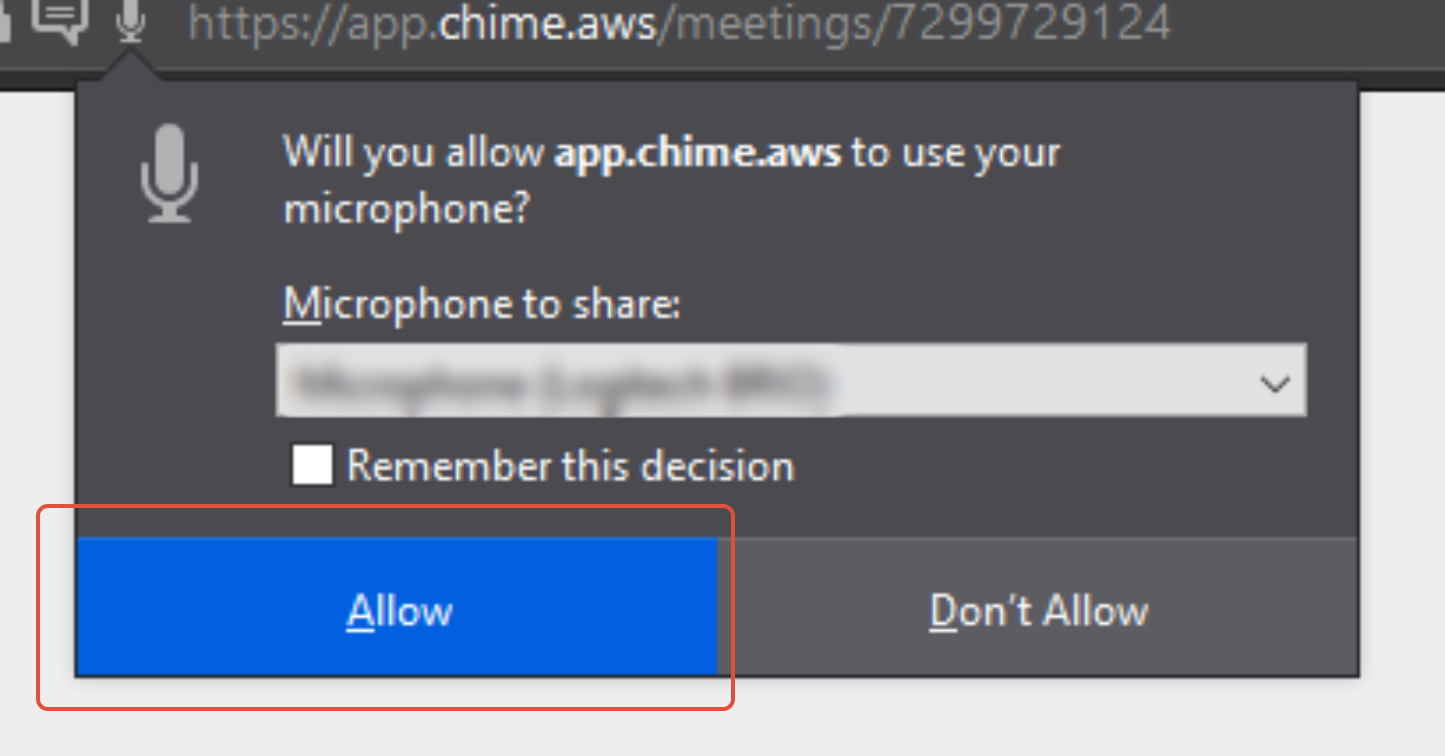
- To allow webcam usage, click on the Video button with the camera icon on the top of the meeting page. Another prompt will then show up asking for permission to use your webcam, click Allow.
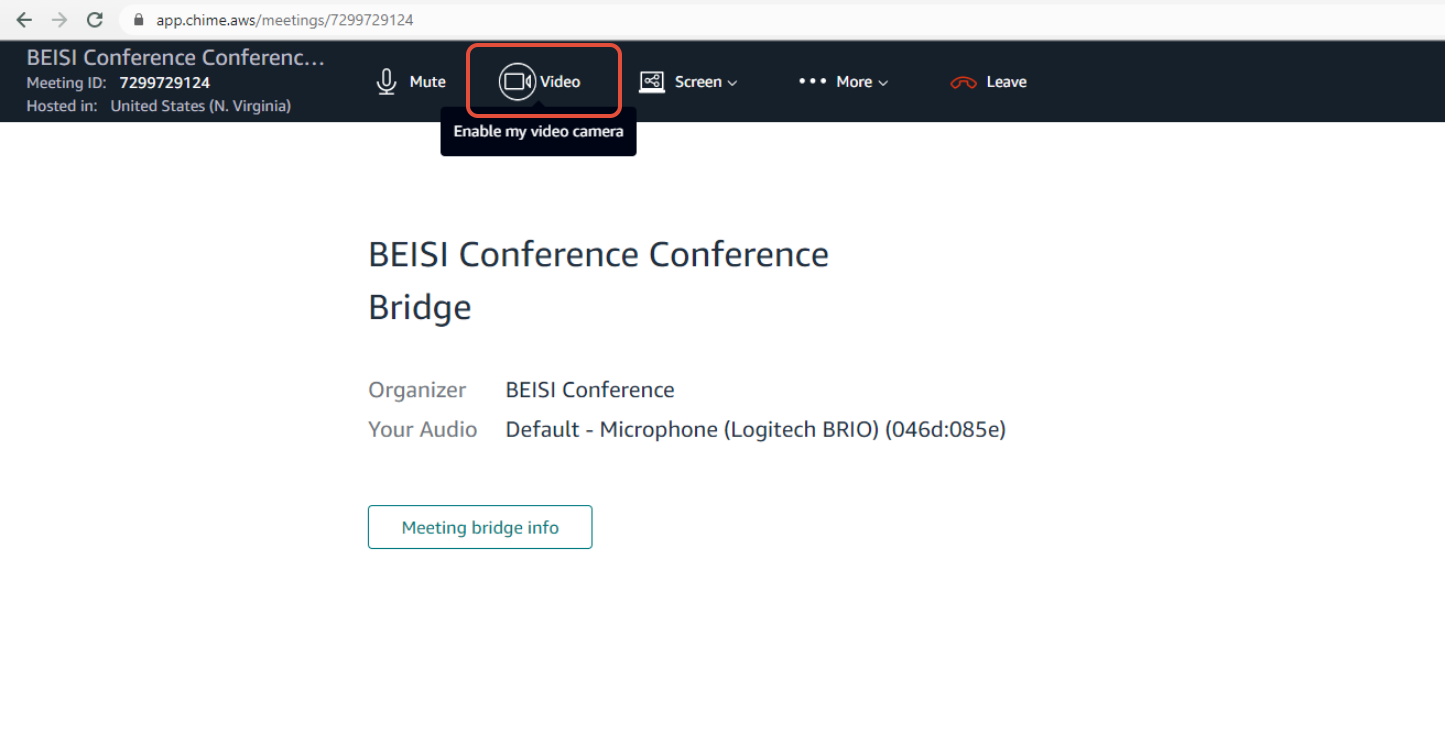 Google Chrome:
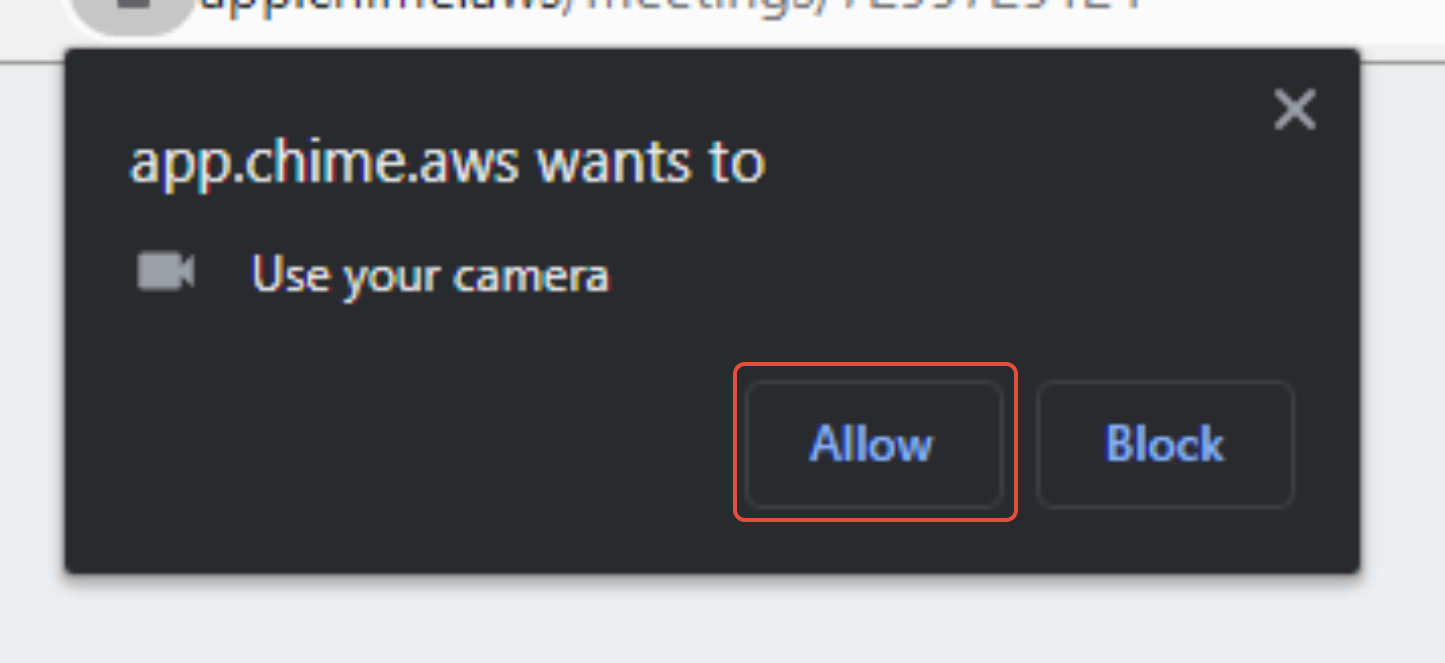 Mozilla Firefox: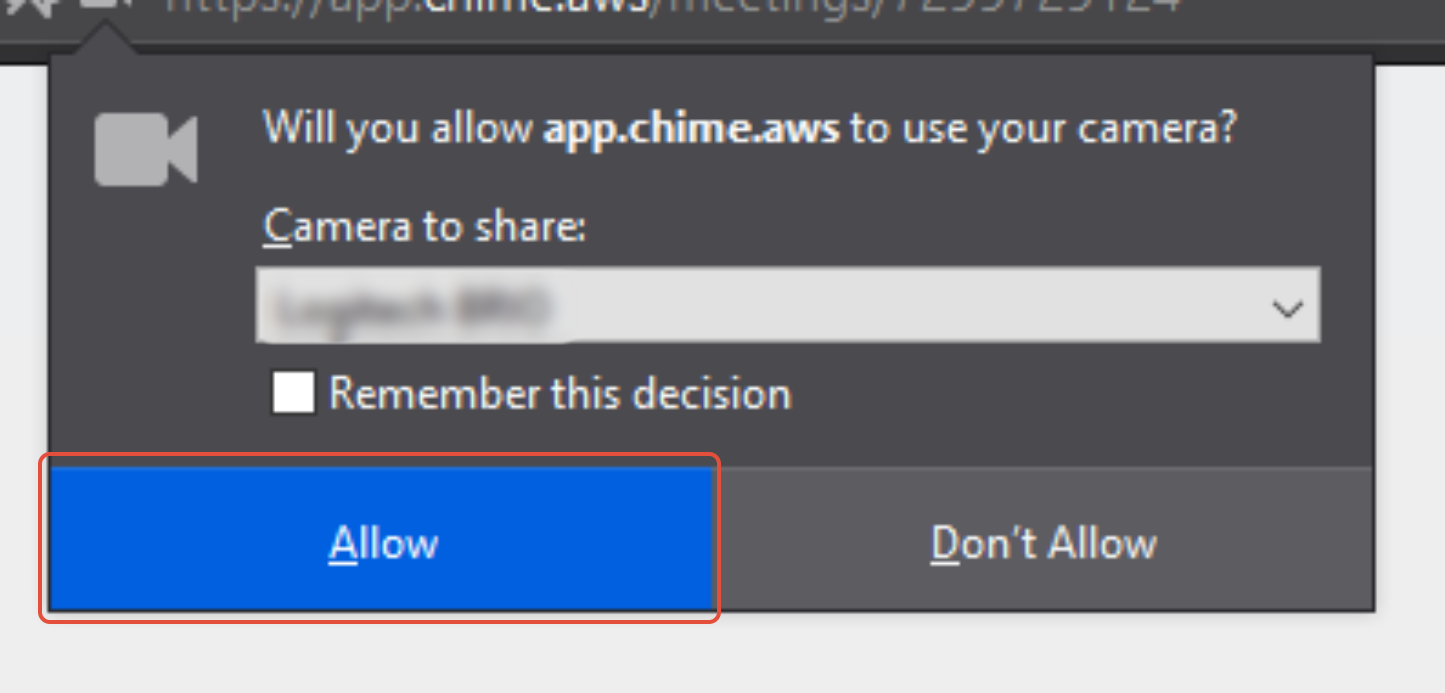
 Mozilla Firefox:
 Google Chrome:
 Mozilla Firefox:
For additional information, see the following links:
[1]https://docs.aws.amazon.com/chime/latest/ug/chime-join-meeting.html
[2]https://docs.aws.amazon.com/chime/latest/ug/chime-web-app.html